


ARTICLE CONTENTSOn this page 8 sections
Computer Networks I
Performance Objectives
By the end of the lesson, students should be able to:
- explain the concept and importance of computer networks;
- identify the basic components of a computer network;
- classify types of computer networks;
- explain network topologies and their characteristics;
- describe network hardware and transmission media;
- draw network topology diagram;
- build a small LAN and resolve simple connectivity issues.
Understanding Computer Networks
A computer network is a collection of interconnected computers and other devices that can communicate with each other and share resources.
Imagine a group of friends sharing toys or books. In the same way, computers in a network share information, hardware, and software. This connection allows for efficient communication and resource management.
Objectives and Benefits of Networking
Computer networks are created to achieve several important objectives, which in turn provide many benefits to users and organisations.
The main objectives of networking include:
- Resource Sharing: Networks allow multiple users to share hardware resources like printers, scanners, and storage devices. They also enable sharing of software applications and data files.
- Information Sharing: Users can easily exchange data, messages, and documents with each other, improving collaboration and communication.
- Centralised Management: Networks can simplify the management of data and applications by storing them on central servers, making backups and updates easier.
- Cost Reduction: Sharing resources like printers means fewer devices need to be purchased, which saves money.
- Enhanced Communication: Networks facilitate communication through email, instant messaging, and video conferencing.
- Increased Productivity: By making resources and information readily available, networks help individuals and teams work more efficiently.
Examples of Networks in Daily Life
Networks are a common part of modern life and are found in many places around us.
Examples of networks in daily life include:
- School Computer Labs: Computers in a school lab are often connected to a network, allowing students to access shared files, printers, and the internet.
- Internet Cafes: Computers in an internet cafe are networked to provide internet access and sometimes shared printing services to customers.
- Office Environments: In offices, computers are networked to allow employees to share documents, access company databases, and use shared printers.
- Home Networks: Many homes have Wi-Fi networks that connect smartphones, laptops, smart TVs, and other devices to the internet and allow them to communicate with each other.
- Automated Teller Machines (ATMs): ATMs are part of a large banking network that allows customers to access their bank accounts from different locations.
- Point-of-Sale (POS) Systems: Supermarkets and shops use networks to connect cash registers, inventory systems, and payment terminals.
Basic Network Devices
For computers and other devices to form a network and communicate, specific hardware components are required. These are known as network devices.
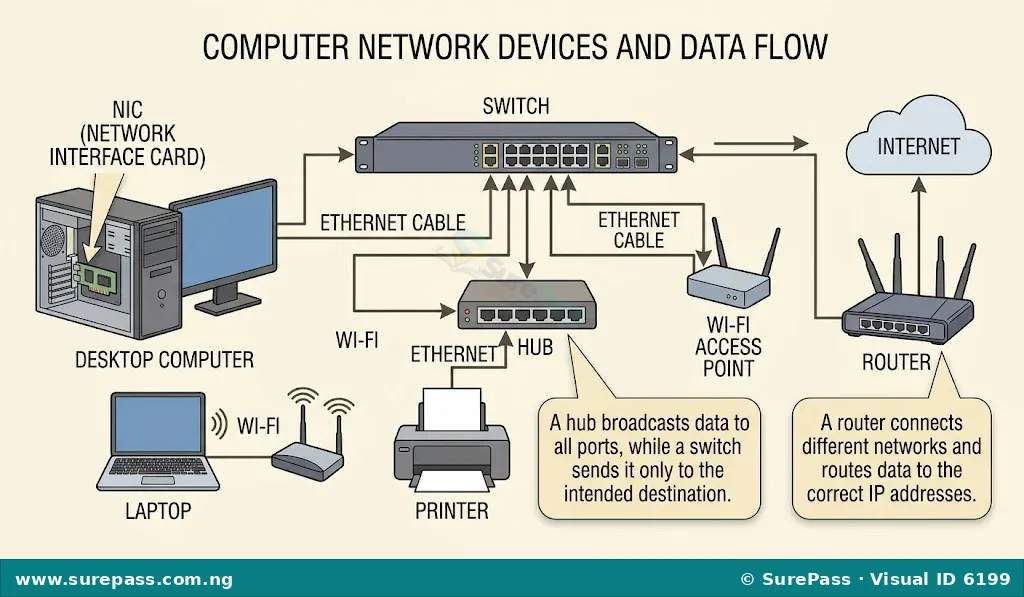
The basic network devices include:
- Computers: These are the end-user devices that send, receive, and process data on the network. They can be desktop computers, laptops, servers, or even smartphones.
- Switches: A switch is a network device that connects multiple devices on a local area network (LAN). It receives data from one device and sends it only to the specific device it is intended for, making network communication efficient.
- Routers: A router connects different networks together, such as a home network to the internet. It directs data packets between these networks, ensuring information reaches its correct destination across different network segments.
- Hubs: A hub is a simpler network device that connects multiple devices. Unlike a switch, a hub sends incoming data to all connected devices, which can lead to less efficient network traffic. Hubs are less common in modern networks.
- Cables: Network cables are physical media used to connect devices in a wired network. Common types include Ethernet cables. They transmit data as electrical signals or light pulses.
- Network Interface Cards (NICs): A NIC, also known as an Ethernet card or network adapter, is a hardware component installed in a computer that allows it to connect to a network. It has a port for a network cable or a wireless antenna.
- Access Points (APs): An access point is a device that creates a wireless local area network (WLAN), typically in an office or large building. It allows Wi-Fi enabled devices to connect to a wired network.
Types of Computer Networks
Computer networks are classified based on their size, geographical coverage, and the number of connected devices. Understanding these types helps in designing and managing networks effectively.
The main types of computer networks are:
- Personal Area Network (PAN)
A Personal Area Network (PAN) is a network used for communication among devices close to a single person. It typically covers a very small area, usually within a few metres.
Characteristics of a PAN include:
- Very small range (typically up to 10 metres).
- Connects personal devices.
- Can be wired (e.g., USB) or wireless (e.g., Bluetooth).
Examples and applications of PANs include:
- Connecting a wireless headset to a smartphone via Bluetooth.
- Connecting a wireless mouse or keyboard to a laptop.
- Transferring files between a smartphone and a laptop using a USB cable.
- Local Area Network (LAN)
A Local Area Network (LAN) connects computers and devices within a limited geographical area, such as a home, school, office building, or a small group of buildings.
Characteristics of a LAN include:
- Covers a small geographical area (e.g., a single room, building, or campus).
- High data transfer rates.
- Typically owned and managed by a single organisation or individual.
Examples and applications of LANs include:
- Computers in a school computer lab connected to a shared printer.
- All computers and devices in an office building connected to share files and internet access.
- A home network connecting multiple devices like laptops, smart TVs, and gaming consoles to a single internet connection.
- Metropolitan Area Network (MAN)
A Metropolitan Area Network (MAN) covers a larger geographical area than a LAN, typically spanning a city or a large campus.
Characteristics of a MAN include:
- Covers an area larger than a LAN but smaller than a WAN (e.g., a city).
- Connects multiple LANs together.
- Often owned and operated by a single entity, such as a city council or a large corporation.
Examples and applications of MANs include:
- A network connecting different branches of a bank within a city.
- A university network connecting various departments and campuses across a metropolitan area.
- Cable TV networks that provide internet and television services across a city.
- Wide Area Network (WAN)
A Wide Area Network (WAN) covers a large geographical area, often connecting cities, states, or even countries. The internet is the largest example of a WAN.
Characteristics of a WAN include:
- Covers a very large geographical area (e.g., across countries or continents).
- Connects multiple LANs and MANs.
- Often uses public telecommunication lines or satellite links.
- Lower data transfer rates compared to LANs, but allows global communication.
Examples and applications of WANs include:
- The Internet, which connects millions of computers worldwide.
- A large corporation with offices in different countries using a WAN to connect their internal networks.
- Airline reservation systems that allow agents in different cities to access the same flight information.
Network Topologies
Network topology refers to the physical or logical arrangement of connected devices in a network. It describes how computers and other network devices are connected to each other.
Different topologies have different advantages and disadvantages in terms of cost, reliability, and performance.
Star Topology
In a star topology, all devices are connected to a central hub or switch. Each device has a dedicated connection to the central device.
Advantages of Star Topology:
- Easy to Install: It is relatively simple to set up and configure.
- Easy to Troubleshoot: If one cable or device fails, only that specific connection is affected, making it easy to identify and fix problems.
- Scalability: New devices can be added to the network easily by connecting them to the central hub/switch, as long as there are available ports.
- Centralised Control: The central device can be used to monitor and manage the network.
Disadvantages of Star Topology:
- Single Point of Failure: If the central hub or switch fails, the entire network goes down.
- Cable Length: Requires more cabling than a bus topology, as each device needs its own cable to the central point.
- Cost: The central device (hub/switch) can be an additional cost.
Bus Topology
In a bus topology, all devices are connected to a single main cable, called the backbone or bus. Data travels along this main cable, and each device checks if the data is intended for it.
Advantages of Bus Topology:
- Less Cabling: Requires less cable than a star topology, making it cost-effective for small networks.
- Easy to Install: Simple to set up for a small number of devices.
Disadvantages of Bus Topology:
- Single Point of Failure: If the main cable (backbone) breaks, the entire network fails.
- Difficult to Troubleshoot: Identifying the exact point of failure can be challenging.
- Limited Scalability: Adding many devices can slow down the network due to increased traffic and collisions.
- Security: Data is broadcast to all devices, which can be a security concern.
Ring Topology
In a ring topology, devices are connected in a circular fashion, forming a closed loop. Data travels in one direction around the ring, passing through each device until it reaches its destination.
Advantages of Ring Topology:
- No Collisions: Data flows in one direction, reducing the chance of data collisions.
- High Performance: Can offer good performance under heavy network load compared to bus topology.
- Equal Access: Each device gets equal access to the network.
Disadvantages of Ring Topology:
- Single Point of Failure: If one device or cable in the ring fails, the entire network can be disrupted.
- Difficult to Troubleshoot: Locating a fault can be difficult as the entire network is affected.
- Difficult to Add/Remove Devices: Adding or removing a device requires breaking the ring, which can temporarily disrupt the network.
Mesh Topology
In a mesh topology, every device in the network is connected directly to every other device. This creates multiple paths for data transmission.
Advantages of Mesh Topology:
- High Reliability: If one path fails, data can still be sent through alternative paths, making it very fault-tolerant.
- High Security: Dedicated links ensure privacy and security of data.
- High Performance: Dedicated connections can lead to very fast data transfer between specific devices.
Disadvantages of Mesh Topology:
- Very Expensive: Requires a large amount of cabling and many network interface cards, making it very costly to implement.
- Complex Installation: Setting up and managing a mesh network is complex due to the numerous connections.
- Difficult to Scale: Adding new devices means adding many new connections, which becomes increasingly difficult with more devices.
Hybrid Topology
A hybrid topology combines two or more different basic topologies (like star, bus, or ring) into a single network. This allows for flexibility and can leverage the advantages of different topologies while mitigating their disadvantages.
Advantages of Hybrid Topology:
- Flexibility: Can be designed to meet specific network requirements and can integrate existing networks.
- Scalability: Easier to expand than single topologies.
- Reliability: Can be designed to be more fault-tolerant by combining reliable topologies.
Disadvantages of Hybrid Topology:
- Complexity: Designing and managing a hybrid network can be very complex.
- Cost: Can be more expensive due to the combination of different hardware and cabling requirements.
Transmission Media
Transmission media are the physical pathways through which data travels from one device to another in a network. They can be broadly categorised into guided and unguided media.
Guided Media (Wired)
Guided media use a physical cable to transmit data. The data signals are confined within the physical path.
Examples of guided media include:
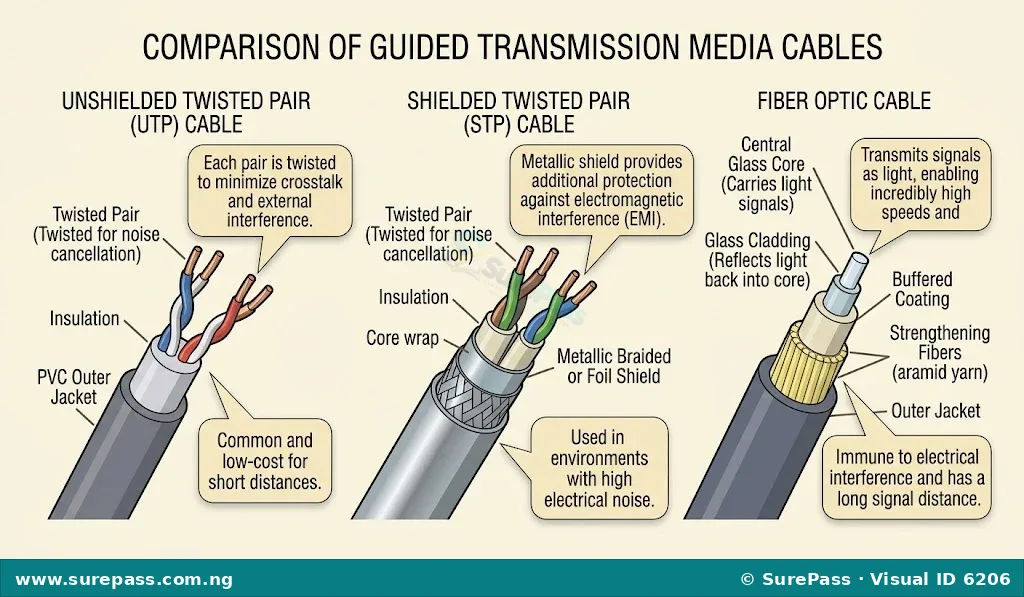
- Unshielded Twisted Pair (UTP) Cable:
UTP cables consist of pairs of insulated copper wires twisted together. The twisting helps to reduce electromagnetic interference from external sources and from adjacent pairs.
Characteristics:
- Commonly used in LANs (e.g., Ethernet networks).
- Relatively inexpensive and easy to install.
- Susceptible to electromagnetic interference over longer distances.
- Shielded Twisted Pair (STP) Cable:
STP cables are similar to UTP cables but include an additional metallic foil or braid shielding around the twisted pairs. This shielding provides better protection against electromagnetic interference and noise.
Characteristics:
- Better protection against interference than UTP.
- More expensive and thicker than UTP.
- Used in environments with high electrical noise.
- Fiber Optic Cable:
Fiber optic cables transmit data using light pulses through thin strands of glass or plastic. They are highly efficient and can carry data over very long distances at high speeds.
Characteristics:
- Transmits data as light signals.
- Immune to electromagnetic interference.
- Very high bandwidth and long transmission distances.
- More expensive and fragile to install than copper cables.
- Used for high-speed backbones and long-distance connections.
Unguided Media (Wireless)
Unguided media transmit data through the air or space without a physical conductor. Data signals are broadcast and can travel in various directions.
Examples of unguided media include:
- Radio Waves:
Radio waves are electromagnetic waves used for wireless communication. They are used in various technologies like Wi-Fi, Bluetooth, and cellular networks.
Characteristics:
- Can travel long distances and penetrate walls.
- Used for broadcasting and mobile communication.
- Susceptible to interference from other radio sources.
- Microwave:
Microwaves are high-frequency radio waves used for point-to-point communication. They require a clear line of sight between the transmitter and receiver, often using parabolic antennas.
Characteristics:
- Used for long-distance, high-bandwidth communication.
- Requires line-of-sight transmission.
- Affected by weather conditions (e.g., heavy rain).
- Used for satellite communication and terrestrial microwave links.
Connecting Devices and Testing Connectivity
Setting up a small Local Area Network (LAN) involves connecting devices and ensuring they can communicate. This practical skill is essential for network administrators.
Steps in Connecting Devices to a Small LAN
Building a small wired LAN typically involves connecting computers to a central switch using Ethernet cables.
The procedure involves the following steps:
- Gather Materials: Ensure you have the necessary devices: at least two computers, a network switch, and enough Ethernet (UTP) cables.
- Position Devices: Place the computers and the switch in their desired locations. Ensure the switch has access to a power source.
- Connect Power to Switch: Plug the power adapter into the switch and then into a power outlet. Turn on the switch if it has a power button.
- Connect Computers to Switch: Take an Ethernet cable. Plug one end into the Network Interface Card (NIC) port on the back of the first computer. Plug the other end into an available port on the network switch. Repeat this step for all other computers you want to connect to the LAN.
- Verify Link Lights: Once connected, observe the link lights on both the computer’s NIC port and the switch port. A solid green or amber light usually indicates a successful physical connection. A blinking light indicates data activity.
- Configure Network Settings (if necessary): Most modern operating systems will automatically configure basic network settings (like obtaining an IP address via DHCP). If not, you may need to manually configure IP addresses, subnet masks, and default gateways for each computer to be on the same network segment.
Testing Connectivity with Ping Commands
After connecting devices, it is important to test if they can communicate with each other. The `ping` command is a common tool used for this purpose.
The `ping` command sends small data packets to a target device and measures the time it takes for the target to respond. This helps to check if a device is reachable and how quickly it responds.
The procedure for testing connectivity using the `ping` command is:
- Identify IP Addresses: Before pinging, you need to know the IP address of the target computer you want to test connectivity with. On a Windows computer, you can find your own IP address by opening the Command Prompt and typing `ipconfig`. On a Linux or macOS computer, use `ifconfig` or `ip addr`.
- Open Command Prompt/Terminal: On a Windows computer, search for “Command Prompt” and open it. On a Linux or macOS computer, open the “Terminal” application.
- Execute the Ping Command: In the Command Prompt or Terminal, type `ping` followed by the IP address of the target computer. For example, if the target computer’s IP address is 192.168.1.10, you would type `ping 192.168.1.10` and press Enter.
- Interpret Results:
- Successful Ping: If the connection is successful, you will see replies from the target IP address, showing the time taken for the packets to travel and return. This indicates that the two devices can communicate.
- Unsuccessful Ping: If the connection fails, you might see messages like “Request timed out,” “Destination host unreachable,” or “Unknown host.” This indicates a problem with the network connection or configuration.
- Troubleshoot Simple Connectivity Issues:
- Check Cables: Ensure all Ethernet cables are securely plugged into both the computer and the switch.
- Check Link Lights: Confirm that the link lights on the NIC and switch ports are active.
- Verify IP Addresses: Make sure all computers have valid IP addresses within the same network range (e.g., 192.168.1.x).
- Restart Devices: Sometimes, simply restarting the computers and the switch can resolve temporary network glitches.
- Check Firewall: A firewall on a computer might be blocking ping requests. Temporarily disabling it (under adult supervision) can help diagnose if it’s the cause.



0 comments
Open the discussion when you need it. Comments stay collapsed until requested so the initial article remains light.