



ARTICLE CONTENTSOn this page 6 sections
Cyber Threat, Safety and Security Measures
Performance Objectives
By the end of the lesson, students should be able to:
- state the meaning of cyber threats;
- identify possible cyber threats;
- discuss safety tips and guidelines for each cyber threats;
- apply appropriate measures to prevent the occurrence of cyber threats.
The internet and digital devices offer many benefits, connecting people and providing access to vast amounts of information. However, this digital world also comes with risks. Understanding these risks, known as cyber threats, and knowing how to protect oneself is essential for safe online interaction.
Meaning and Examples of Cyber Threats
A cyber threat is any potential danger or malicious act that can harm computer systems, networks, or digital information, or cause harm to individuals online.
These threats can come in many forms, from software designed to damage computers to human actions intended to deceive or harm others. Protecting digital identity and personal information requires awareness of these dangers.
Types of Cyber Threats
Common examples of cyber threats include:
- Virus and Malware:
- Bullying:
- Phishing:
- Cyber Predators:
- Online Fraud and Scams:
- Hate Speech:
- Extortion:
- Hacking:
- Stalking:
- Trolling:
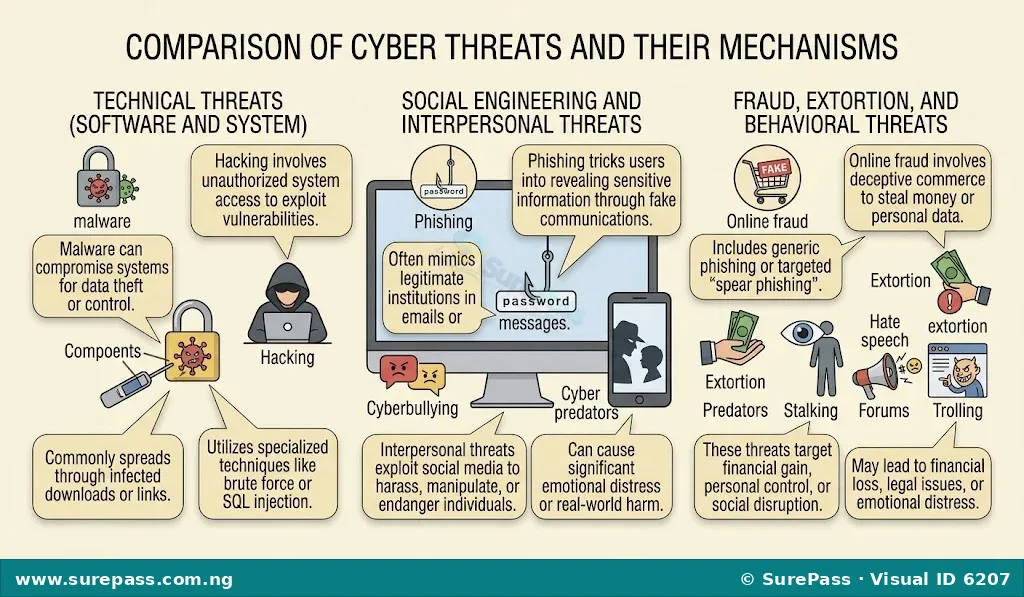
Malware, short for malicious software, is any software designed to damage, disrupt, or gain unauthorised access to a computer system. Viruses are a type of malware that attach themselves to legitimate programs and spread to other computers when those programs are executed.
For example, downloading a free game from an untrusted website might install a virus that slows down a computer or deletes files.
Cyberbullying is the use of digital technologies to repeatedly harass, threaten, embarrass, or target another person. This can happen through social media, messaging apps, gaming platforms, or email.
An example is a group of students sending hurtful messages or posting embarrassing pictures of a classmate online.
Phishing is a type of online fraud where attackers pretend to be a trustworthy entity, such as a bank, a popular website, or a government agency, to trick individuals into revealing sensitive information like usernames, passwords, or credit card details.
For instance, receiving an email that looks like it’s from a bank, asking to click a link and verify account details, is often a phishing attempt.
Cyber predators are individuals who use the internet to find and exploit vulnerable people, often children or teenagers, for harmful purposes, including sexual exploitation, manipulation, or abuse.
An example is an adult pretending to be a teenager online to gain the trust of a young person and arrange a meeting.
Online fraud and scams involve deceptive practices used to trick individuals into giving money, personal information, or other valuables to fraudsters through the internet.
This includes fake online shopping sites, lottery scams, investment scams, or requests for money from someone pretending to be in distress.
Hate speech is any form of expression, including words, images, or behaviour, that attacks or demeans a person or group on the basis of attributes such as race, ethnicity, religion, gender, sexual orientation, disability, or other characteristics.
An example is posting comments online that promote violence or discrimination against a particular ethnic group.
Online extortion, also known as cyber extortion, involves threatening to expose sensitive information, damage data, or disrupt services unless a ransom or payment is made.
For example, a hacker might gain access to a person’s private photos and threaten to publish them unless money is paid.
Hacking refers to gaining unauthorised access to a computer system, network, or digital device. Hackers may do this to steal information, disrupt services, or simply to prove their technical skills.
An example is someone breaking into a school’s computer network to change student grades or access confidential records.
Cyberstalking is the use of the internet or other electronic means to harass or stalk an individual. This can involve sending unwanted messages, monitoring online activity, or spreading false rumours.
For instance, repeatedly sending unwanted messages to someone, tracking their online posts, and showing up at places they mention online can be cyberstalking.
Trolling involves intentionally provoking arguments, upsetting people, or sowing discord on the internet by posting inflammatory, extraneous, or off-topic messages in an online community, often with the intent of disrupting an online discussion.
An example is someone posting deliberately offensive comments on a social media page to annoy other users and get a reaction.
Online Safety Tips and Guidelines
To navigate the digital world safely, it is important to follow certain guidelines and adopt protective habits. These tips help to minimise exposure to cyber threats and protect personal information.
- Avoiding Inappropriate Contacts:
- Making Positive Online Networking:
- Protecting Personal Information:
- Fact-Checking:
- Knowing When to Turn GPS Location Button On and Off:
Be cautious about who is interacted with online. Do not accept friend requests or messages from strangers, especially if they ask for personal details or suggest meeting offline. If someone online makes a person feel uncomfortable, it is important to block them and report their behaviour.
Focus on connecting with known friends, family, and trusted individuals. Use online platforms to share positive experiences, learn new things, and engage in constructive discussions. Avoid engaging with negative or aggressive content.
Personal information includes full name, address, phone number, school, and date of birth. This information should never be shared with strangers online. Be careful about what is posted on social media, as even seemingly harmless details can be used by malicious individuals.
Before believing or sharing information found online, always verify its accuracy. Many scams and misinformation campaigns rely on people not checking facts. Look for reliable sources, cross-reference information, and be critical of sensational headlines or claims that seem too good to be true.
Many mobile devices have a Global Positioning System (GPS) feature that can pinpoint a user’s exact location. While useful for navigation, sharing location data constantly can be risky. It is important to turn off GPS location services for apps that do not need it and to only turn it on when necessary, such as when using a map application.
Privacy Settings
Privacy settings are controls available on websites, apps, and devices that allow users to manage who can see their information, who can contact them, and what data is collected about them. Properly configuring these settings is a key step in protecting digital identity.
- Blocking:
- User Accounts:
- Strong Passwords:
- Filtering of Inappropriate Contents and Websites:
- Two-Way Authentication (Two-Factor Authentication – 2FA):
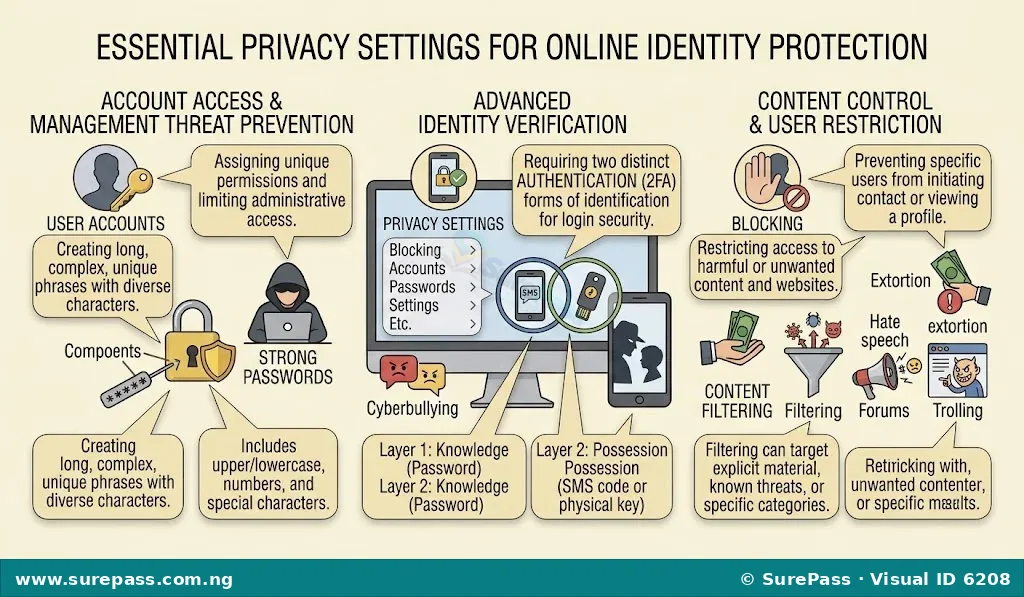
Blocking is a feature that prevents a specific user from contacting or viewing a person’s profile or content on social media platforms, messaging apps, or email services. It is an effective way to stop unwanted communication or harassment.
For example, if someone is sending inappropriate messages, blocking them will prevent further contact.
User accounts are personal profiles created on websites, apps, or operating systems that allow access to services and store individual settings and data. Each account should be secured with a strong, unique password.
Creating separate user accounts on a shared computer can also protect individual files and settings from other users.
A strong password is a combination of letters (uppercase and lowercase), numbers, and symbols that is difficult for others to guess or for computers to crack. Strong passwords are essential for protecting user accounts from unauthorised access.
An example of a strong password is “SureP@ss_SS1#2024!”.
Content filtering involves using software or browser settings to block access to websites or online content that is deemed inappropriate, harmful, or malicious. This is particularly useful for protecting younger users from unsuitable material.
Many internet service providers and web browsers offer built-in content filtering options.
Two-factor authentication (2FA) is a security process that requires two different methods of verification to prove a user’s identity before granting access to an account. This adds an extra layer of security beyond just a password.
For example, after entering a password, a user might also need to enter a code sent to their mobile phone or use a fingerprint scan.
Applying Privacy and Security Settings on Apps and Devices
Applying privacy and security settings is a practical skill that helps protect digital identity. The following procedures outline how to implement some key measures.
How to Create a Strong Password
Creating a strong password is the first line of defence for any online account. A strong password is unique and difficult to guess.
The procedure involves the following steps:
- Choose a long phrase: Start with a phrase that is easy to remember but not commonly known, such as “My favourite colour is blue and I love jollof rice!”.
- Mix character types: Replace some letters with numbers or symbols. For example, ‘i’ can become ‘1’, ‘o’ can become ‘0’, ‘a’ can become ‘@’, and ‘s’ can become ‘$’.
- Add uppercase and lowercase letters: Vary the case of letters within the password.
- Include special characters: Add symbols like !, @, #, $, %, ^, &, * to make it more complex.
- Example: Using the phrase “My favourite colour is blue and I love jollof rice!”, a strong password could be “MyF@v0ur1t3C0l0ur1sBlu3&IL0v3J0ll0fR1c3!”.
- Avoid personal information: Do not use names, birthdays, phone numbers, or other easily discoverable personal details.
- Use different passwords: Create a unique strong password for each important online account.
How to Turn GPS Location On and Off on a Smartphone
Managing GPS location settings helps control who can track a device’s physical location.
The procedure involves the following steps (steps may vary slightly depending on the phone’s operating system, e.g., Android or iOS):
- Access Settings: Open the “Settings” app on the smartphone.
- Find Location Services: Look for a section named “Location,” “Security & privacy,” or “Privacy.”
- Toggle Location: Find the “Location” or “Location Services” toggle switch. Tap it to turn it “On” or “Off.”
- Review App Permissions: Within the Location settings, there is usually an option to see which apps have access to location data. Review this list and disable location access for apps that do not genuinely need it.
- Confirm: Once the setting is changed, exit the Settings app. The change takes effect immediately.
How to Block a User on a Social Media App (General Steps)
Blocking a user is a way to stop unwanted interactions and protect privacy on social media.
The procedure involves the following steps:
- Go to the User’s Profile: Navigate to the profile page of the user to be blocked. This can usually be done by searching for their name or clicking on their username in a post or message.
- Find the Block Option: Look for a menu icon (often three dots or lines) or a “More Options” button on their profile page. Tap this icon.
- Select “Block”: From the menu that appears, select the “Block” option.
- Confirm Blocking: The app will usually ask for confirmation. Read the message to understand what happens when a user is blocked (e.g., they cannot see posts, send messages, or find the profile). Confirm the action.
- Report (Optional): If the user’s behaviour was abusive or inappropriate, consider reporting them to the platform in addition to blocking them.
How to Set Up Two-Factor Authentication (2FA) (General Steps)
Setting up 2FA adds an extra layer of security to online accounts, making it much harder for unauthorised individuals to gain access.
The procedure involves the following steps:
- Log in to the Account: Sign in to the online account (e.g., email, social media, banking) where 2FA is to be enabled.
- Access Security Settings: Go to the account’s “Settings” or “Security” section. This is often found under a profile icon or a menu.
- Find Two-Factor Authentication: Look for an option like “Two-Factor Authentication,” “2FA,” “Login Verification,” or “Multi-Factor Authentication.”
- Choose a Verification Method: The platform will offer different ways to receive the second verification code. Common methods include:
- SMS (Text Message): A code is sent to a registered phone number.
- Authenticator App: An app like Google Authenticator or Microsoft Authenticator generates time-sensitive codes.
- Security Key: A physical device that plugs into the computer.
- Follow On-Screen Instructions: The platform will guide through the setup process, which may involve:
- Entering a phone number to receive codes.
- Scanning a QR code with an authenticator app.
- Verifying the setup with an initial code.
- Save Backup Codes: Many services provide backup codes in case the primary 2FA method is unavailable (e.g., lost phone). Save these codes in a safe, offline place.
- Confirm Activation: Once completed, the account will be protected with 2FA. The next time a login occurs, a code will be required in addition to the password.





0 comments
Open the discussion when you need it. Comments stay collapsed until requested so the initial article remains light.