


ARTICLE CONTENTSOn this page 8 sections
Safety and Security Features on Digital Devices
Performance Objectives
By the end of the lesson, students should be able to:
- identify safety and security features on digital devices;
- explain the usefulness of GPS as safety measures on digital devices;
- list ways of securing digital devices;
- state importance of securing digital devices;
- activate security features on a digital device.
Introduction to Safety and Security Features
Digital devices such as computers, smartphones, and tablets are essential tools for learning, communication, and entertainment. To ensure these devices are used in a healthy and secure manner, they are equipped with specific safety and security features.
Safety features on digital devices are physical components or built-in tools designed to protect the physical health and well-being of the user while using the device.
Security features on digital devices are software tools or hardware mechanisms designed to protect the device and its stored data from unauthorized access, theft or damage.
While safety features focus on protecting the human user from physical discomfort or harm, security features focus on protecting the device and the information stored inside it from digital threats and unauthorized users.
Safety Features on Digital Devices
Manufacturers design digital devices with safety features to prevent physical strain, injury, or loss. These features help users maintain good health and protect their physical property.
Examples of safety features on digital devices include:
- Anti-Glare Screen
- Global Positioning System (GPS)
Anti-Glare Screen
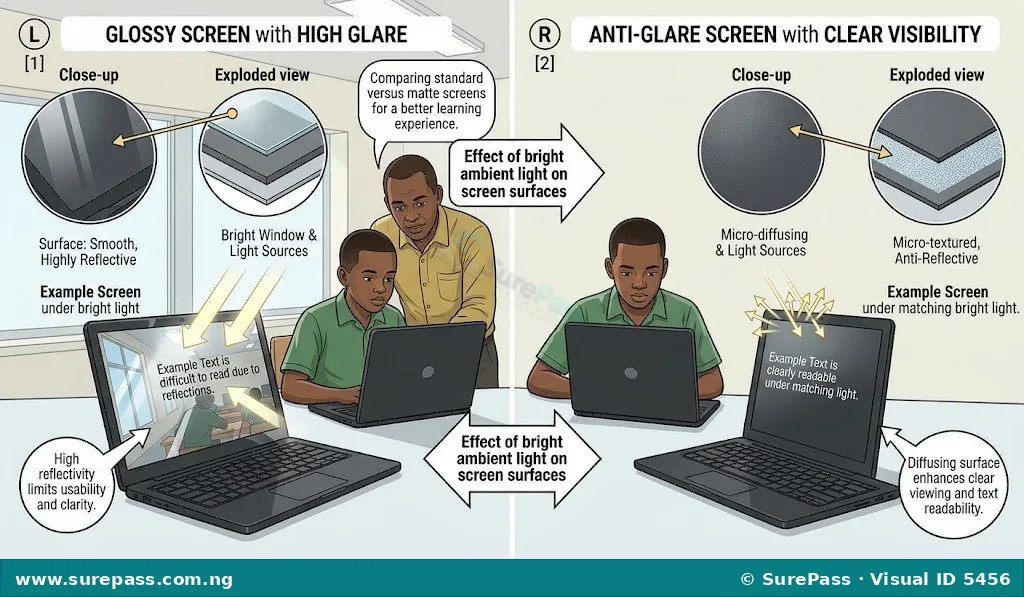
An anti-glare screen is a protective panel or coating applied to the display of a digital device. It works by reducing the amount of light that reflects off the screen from external sources, such as sunlight or overhead room lights.
Without an anti-glare screen, reflections can cause users to squint, leading to eye strain, headaches, and physical fatigue. By diffusing reflected light, the anti-glare screen makes the display much easier to read in bright environments, thereby protecting the eyes of the user during long study or work sessions.
Observe the image below.
Global Positioning System (GPS)
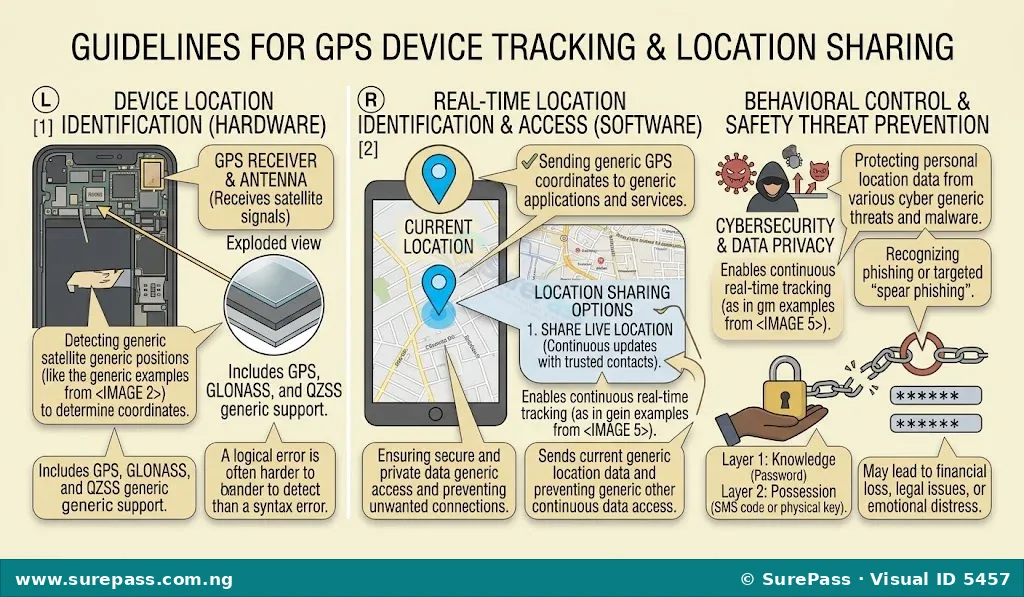
The Global Positioning System (GPS) is a satellite-based navigation system that allows a digital device to determine its exact geographical location on Earth.
GPS serves as a vital safety measure on digital devices. It helps protect both the user and the physical device in several ways.
The usefulness of GPS as a safety measure includes:
- Real-Time Location Sharing: Users can share their live location with trusted family members, guardians, or friends. This ensures that the physical safety of the user can be monitored when traveling.
- Tracking Lost or Stolen Devices: If a smartphone or laptop is misplaced or stolen, GPS tracking services (such as “Find My Device”) can locate the exact position of the device on a map.
- Emergency Assistance: In times of distress or accidents, GPS allows emergency services, such as the police or medical teams, to find the exact location of the user quickly.
- Geofencing for Child Safety: Parents can set up virtual boundaries using GPS. If a child carrying the device goes beyond the safe zone, an alert is sent to the parent.
Observe the diagram below.
Security Features on Digital Devices
Security features are designed to prevent unauthorized individuals from accessing private information, files, and applications stored on a digital device.
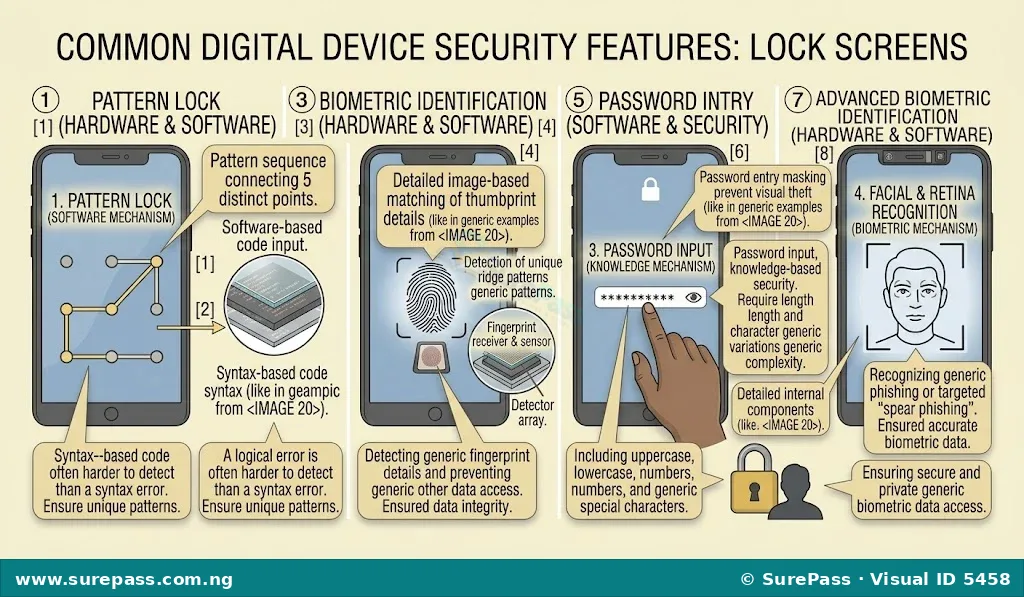
Common security features on digital devices include:
- Security Key: A physical device (such as a USB token) or a unique digital code that a user must insert or enter to verify their identity before the device can be accessed.
- Anti-Virus: A software program installed on a device to detect, block, and remove malicious software, such as viruses, worms, and spyware, which can steal data or damage the system.
- Password: A secret sequence of characters, including letters, numbers, and symbols, that must be typed correctly to unlock a device or an account.
- Fingerprint Lock: A biometric security feature that uses a built-in scanner to read the unique patterns of a user’s fingerprint to unlock the device.
- Retina Lock: An advanced biometric security feature that scans the unique patterns of the iris or retina in the user’s eye to grant access to the device.
- Pattern Lock: A security feature where the user draws a specific geometric pattern on a grid of dots on the screen to unlock the device.
Look at the object shown below.
Importance of Securing Digital Devices
Securing digital devices is highly important in the modern world because of the large amount of personal and sensitive information stored on them.
The importance of securing digital devices includes:
- Prevention of Unauthorized Access: It prevents unauthorized individuals, such as classmates, strangers, or intruders, from viewing private photos, messages, and personal documents.
- Protection of Personal Data: It safeguards sensitive information, such as bank account details, home addresses, and passwords, from being stolen by cybercriminals.
- Prevention of Malware Infections: Activating security features like anti-virus software protects the device from harmful programs that can slow down the system or delete important files.
- Identity Theft Prevention: If a device is secured, criminals cannot easily access the owner’s social media accounts or email to send fraudulent messages or pretend to be the owner.
- Safe Device Recovery: If a secured device is lost or stolen, the finder or thief cannot access the data, and the owner can remotely lock or wipe the device to protect their privacy.
Ways of Securing Digital Devices
To keep digital devices safe from physical and digital threats, users must practice good security habits.
Effective ways of protecting digital devices include:
- Setting up strong passwords, PINs, or biometric locks (fingerprint or retina scan) on all devices.
- Installing reliable anti-virus software and keeping it updated regularly.
- Enabling GPS tracking features, such as “Find My Device” or “Find My iPhone,” to locate the device if it gets lost.
- Avoiding the use of public, unsecured Wi-Fi networks for private transactions or logging into sensitive accounts.
- Updating the operating system and applications of the device regularly to patch security vulnerabilities.
- Backing up important files to secure cloud storage or external storage drives.
How to Activate Security Features on a Digital Device
Activating security features is a practical skill that every user must perform to protect their device from unauthorized access.
Activating a Screen Lock on a Mobile Device
The procedure to activate a screen lock on an Android mobile device involves the following steps:
- Open the Settings application on the mobile device.
- Scroll down the menu and select Security or Lock Screen.
- Tap on Screen Lock Type or Screen Lock.
- Select the preferred lock method from the options provided, such as Pattern, PIN, or Password.
- Draw the desired pattern or type the chosen PIN or password.
- Tap Next or Continue.
- Re-enter the exact same pattern, PIN, or password to confirm it.
- Tap Confirm or Done to activate the screen lock.
Creating a Strong Password
A weak password can easily be guessed by others or cracked by computer programs. Creating a strong password is essential for effective security.
The rules for creating a strong password include:
- Length: Use a minimum of eight characters. Longer passwords are much harder to crack.
- Character Variety: Combine uppercase letters (A-Z), lowercase letters (a-z), numbers (0-9), and special symbols (such as @, #, $, %, or *).
- Avoid Personal Information: Do not use easily guessable information, such as names, birth dates, phone numbers, or pet names.
- Avoid Common Words: Do not use simple words like “password”, “12345678”, or sequential keyboard patterns like “qwerty”.
- Example of a Weak Password:
kemi2010(This is weak because it uses a common name and a year). - Example of a Strong Password:
K@m1#9!St(This is strong because it combines uppercase and lowercase letters, numbers, and special symbols in a non-obvious way).


0 comments
Open the discussion when you need it. Comments stay collapsed until requested so the initial article remains light.