


ARTICLE CONTENTSOn this page 9 sections
Coding with Scratch
Performance Objectives
By the end of the lesson, students should be able to:
- explain the meaning of stepwise thinking concept;
- explain the meaning of algorithm;
- discuss stepwise thinking in relation to algorithm;
- state the functions of Sprite,Stage and Block Palette in Scratch;
- create a simple program using Scratch.
What is Coding?
Coding is the process of giving instructions to a computer or a digital device. These instructions tell the computer exactly what to do, step by step. Computers follow these instructions to perform tasks, create games, build websites, and run applications.
When people write code, they are essentially speaking the computer’s language. This language is made of special commands that the computer understands.
What is Scratch?
Scratch is a visual programming language that helps people learn how to code. It was created by MIT Media Lab.
With Scratch, people can create their own interactive stories, games, and animations. Instead of typing complex code, Scratch uses colourful blocks that snap together like LEGO bricks. This makes coding easier and more fun, especially for young learners.
Stepwise Thinking
Stepwise thinking is the process of breaking down a big task or problem into smaller, simpler steps that can be solved one after the other.
When a task seems too big, thinking step by step helps to manage it. Each small step is easier to understand and complete, and when all the small steps are done, the big task is finished.
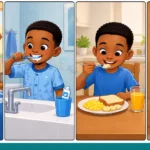
For example, getting ready for school involves many steps. These steps must be done in a certain order:
- Wake up.
- Brush teeth.
- Take a bath.
- Get dressed.
- Eat breakfast.
- Pack school bag.
- Go to school.
Each of these is a small step. Doing them in the correct order helps a person get ready for school successfully.
Algorithms
An algorithm is a set of clear, step-by-step instructions used to solve a problem or complete a task.
Algorithms are like recipes. Just as a recipe gives instructions for cooking a meal, an algorithm gives instructions for a computer to follow. Every computer program is built using algorithms.
Stepwise Thinking and Algorithms
Stepwise thinking is very important for creating algorithms. When a person thinks stepwise, they are already breaking a problem into the individual steps needed for an algorithm.
For example, to make a simple sandwich, an algorithm would involve these steps:
- Get two slices of bread.
- Get butter or margarine.
- Get a knife.
- Spread butter or margarine on one side of each bread slice.
- Add a filling (like jam or cheese) to one slice of bread.
- Place the other slice of bread on top, with the buttered side down.
- Cut the sandwich in half (optional).
This sequence of steps is an algorithm. It shows how stepwise thinking helps to create clear instructions.
The Scratch Visual Programming Interface
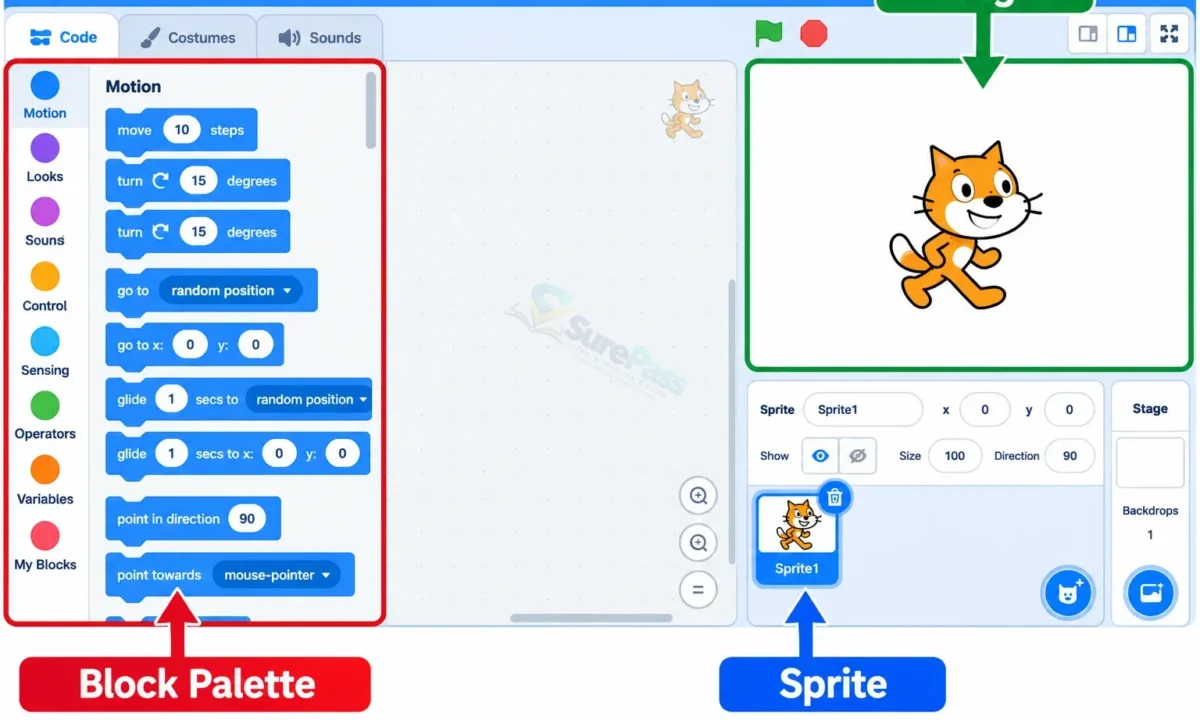
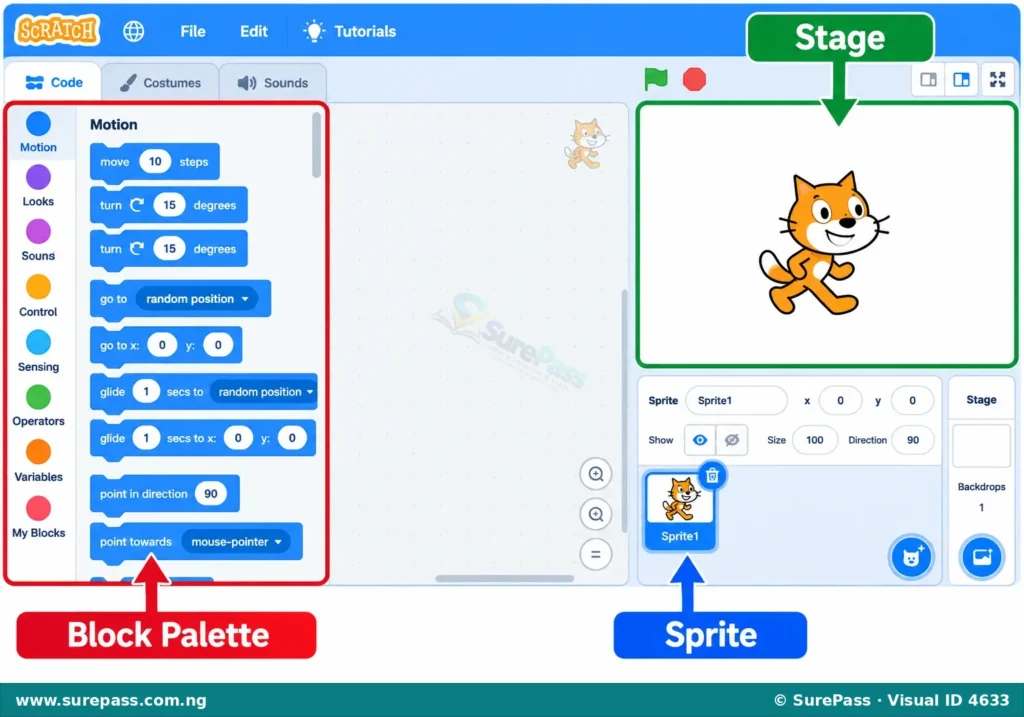
Scratch has a friendly visual interface that makes it easy to create programs. The main parts of the Scratch interface are the Stage, Sprites, and the Block Palette.
The Stage
The Stage is the large white area on the right side of the Scratch interface. It is where all the action happens in a Scratch project.
The Stage acts like a background or a scene for the stories, games, and animations. Sprites move, interact, and display messages on the Stage.
Sprites
A Sprite is a character or object that performs actions in a Scratch project. The default Sprite in Scratch is a cat.
Sprites can be changed, drawn, or chosen from a library of existing characters. Each Sprite can have its own set of instructions (code) that tells it what to do, such as move, change colour, or say something.
The Block Palette
The Block Palette is located on the left side of the Scratch interface. It contains different categories of colourful code blocks.
These blocks are grouped by their function, such as “Motion” blocks for movement, “Looks” blocks for appearance, and “Events” blocks for starting actions. Programmers drag these blocks from the Block Palette and snap them together in the scripting area to create programs.
Character Communication in Scratch
In Scratch, Sprites can communicate with the audience or with other Sprites in simple ways. This communication helps to tell a story or make a game more interactive.
One common way for a Sprite to communicate is by using “say” blocks. When a “say” block is added to a Sprite’s code, the Sprite will display a speech bubble with text on the Stage. This makes it look like the character is talking.
Sprites can also communicate through their actions, such as moving, changing costumes, or making sounds. For example, a Sprite that moves quickly might communicate excitement, while a Sprite that changes to a sad costume might communicate sadness.
Creating a Simple Program Using Scratch
Creating a program in Scratch involves selecting Sprites, choosing a Stage background, and then dragging and snapping code blocks together to give instructions.
A simple program can make a Sprite move in a straight line across the Stage. This requires using specific blocks from the Block Palette.
How to Make a Ball Move in a Straight Line
This procedure explains how to create a Scratch program where a ball Sprite moves in a straight line from one point to another on the Stage.
The required materials are:
- A computer or tablet with Scratch software installed or internet access to use Scratch online.
The procedure involves the following steps:
- Open Scratch: Start the Scratch application on a computer or tablet, or open the Scratch website in a browser.
- Choose a Sprite: The default Scratch cat Sprite can be deleted. Click on the “Choose a Sprite” button (it looks like a cat head with a plus sign) and select a “Ball” Sprite from the library.
- Choose a Stage Background: Click on the “Choose a Backdrop” button (it looks like a picture icon with a plus sign) and select a simple background for the Stage, such as “Blue Sky” or “White.”
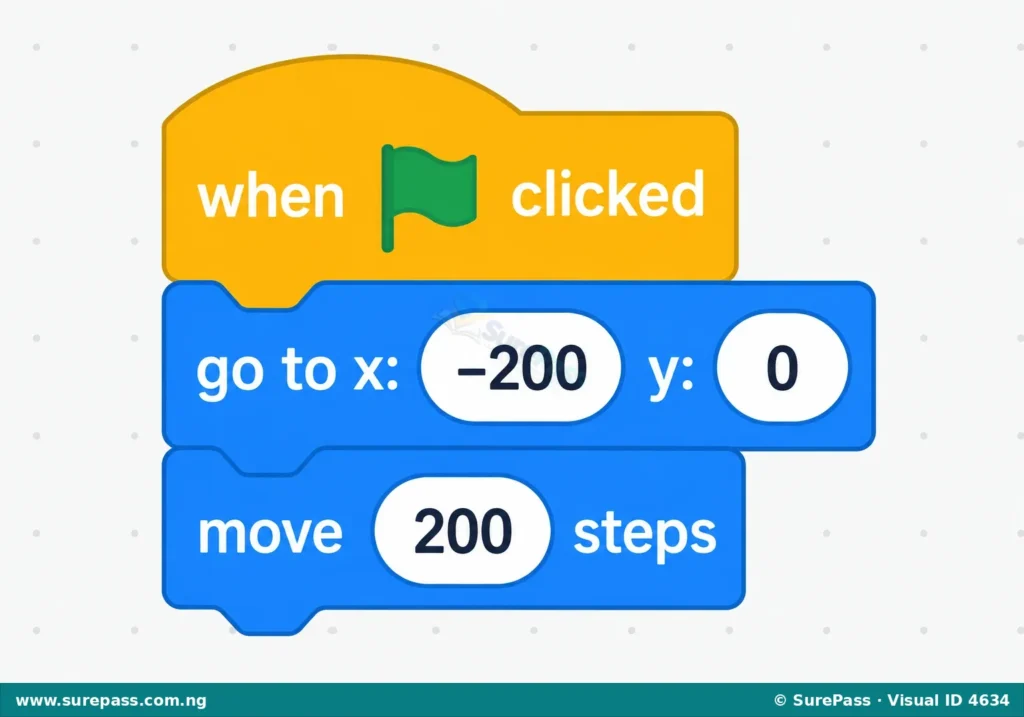
- Start the Program: From the “Events” category in the Block Palette, drag the “when green flag clicked” block to the scripting area. This block tells the program to start when the green flag is clicked.
- Set the Starting Position: From the “Motion” category, drag the “go to x: ( ) y: ( )” block and snap it under the “when green flag clicked” block. Change the numbers in the x and y boxes to set the ball’s starting position, for example, x: -200 and y: 0. This places the ball on the left side of the Stage.
- Make the Ball Move: Still in the “Motion” category, drag the “move ( ) steps” block and snap it under the “go to x: y:” block. Change the number in the box to a larger value, for example, “200” steps. This will make the ball move 200 steps to the right.
- Test the Program: Click the green flag above the Stage. The ball Sprite should move from its starting position on the left to a new position on the right in a straight line.

0 comments
Open the discussion when you need it. Comments stay collapsed until requested so the initial article remains light.