



ARTICLE CONTENTSOn this page 5 sections
Input Devices
Performance Objectives
By the end of the lesson, students should be able to:
- explain the meaning of keyboard;
- identify the classification keys of on keyboard;
- carryout operations using keyboard.
- describe mouse;
- identify the standard mouse buttons;
- use the mouse to perform basic operations
What Are Input Devices?
A computer is an electronic device that accepts data, processes it and gives information. To work with a computer, people need ways to put information into it.
Input devices are tools that allow people to send information, commands, or data into a computer. This information can be letters, numbers, pictures, sounds, or instructions.
The Keyboard
The keyboard is an input device that looks like a typewriter. It has many buttons called keys. Each key has a letter, number, symbol, or command written on it.
When a key is pressed, it sends a signal to the computer. This signal tells the computer what character or command to display or perform.
Classification of Keyboard Keys
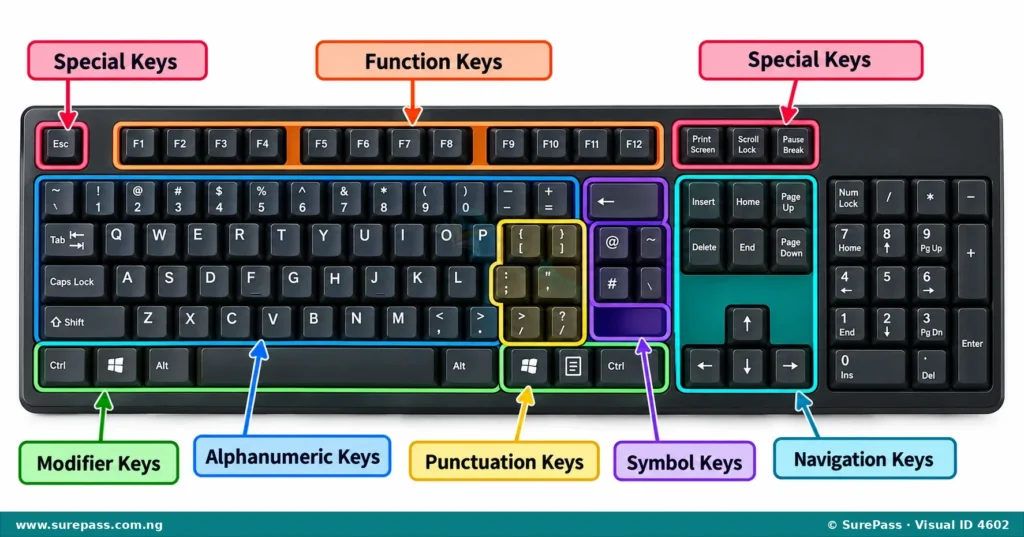
Keyboards have different types of keys, each with a special job. Understanding these groups helps people use the keyboard more effectively.
- Alphanumeric Keys: These are the most common keys. They include all the letters of the alphabet (A-Z) and numbers (0-9). They are used for typing words, sentences, and numerical data.
-
Punctuation Keys: These keys are used to add punctuation marks to text. Examples include:
- Full stop (.)
- Comma (,)
- Question mark (?)
- Exclamation mark (!)
- Apostrophe (‘)
-
Symbol Keys: These keys are used to type various symbols. Many symbol keys are found above the number keys and require pressing the Shift key to access the symbol. Examples include:
- At sign (@)
- Hash sign (#)
- Dollar sign ($)
- Percentage sign (%)
- Ampersand (&)
-
Navigation Keys: These keys help people move around in documents or web pages. They include:
- Arrow keys (Up, Down, Left, Right)
- Page Up (PgUp)
- Page Down (PgDn)
- Home
- End
-
Modifier Keys: These keys change the function of other keys when pressed together. They do not do anything by themselves. Common modifier keys are:
- Shift
- Ctrl (Control)
- Alt (Alternate)
- Function Keys: These keys are usually found at the top of the keyboard, labelled F1 to F12. They perform special tasks depending on the program being used. For example, F1 often opens a help menu.
-
Special Keys: These keys perform specific actions or commands. Examples include:
- Enter (or Return) key, used to start a new line or confirm a command.
- Backspace key, used to delete characters to the left of the cursor.
- Delete key, used to delete characters to the right of the cursor or selected items.
- Spacebar, used to create spaces between words.
- Tab key, used to move the cursor a fixed number of spaces or between fields.
- Caps Lock key, used to type all letters in uppercase.
- Esc (Escape) key, used to cancel an operation or close a menu.
How to Use the Keyboard for Basic Operations
Using the keyboard involves pressing the correct keys to enter text, numbers, or commands into the computer. This skill is important for writing, searching, and controlling programs.
The procedure involves the following steps:
- Place fingers correctly on the keyboard, with index fingers on the ‘F’ and ‘J’ keys (which usually have small bumps).
- To type letters, press the alphanumeric keys. For uppercase letters, hold down the Shift key while pressing the letter key, or press Caps Lock once to type all letters in uppercase.
- To type numbers, press the number keys. For symbols above the numbers, hold down the Shift key while pressing the number key.
- To add punctuation, press the punctuation keys. For example, press the full stop key to end a sentence.
- To move the cursor in a document, use the arrow keys (Up, Down, Left, Right).
- To delete mistakes, press the Backspace key to remove characters to the left of the cursor.
- To confirm a command or start a new line, press the Enter key.
- To create spaces between words, press the Spacebar.
The Mouse
The mouse is another important input device. It is a small device that fits under the hand and is used to control a pointer or cursor on the computer screen. The mouse helps people select items, open programs, and move objects on the screen.
As the mouse is moved on a flat surface, the pointer on the screen moves in the same direction.
Standard Mouse Buttons
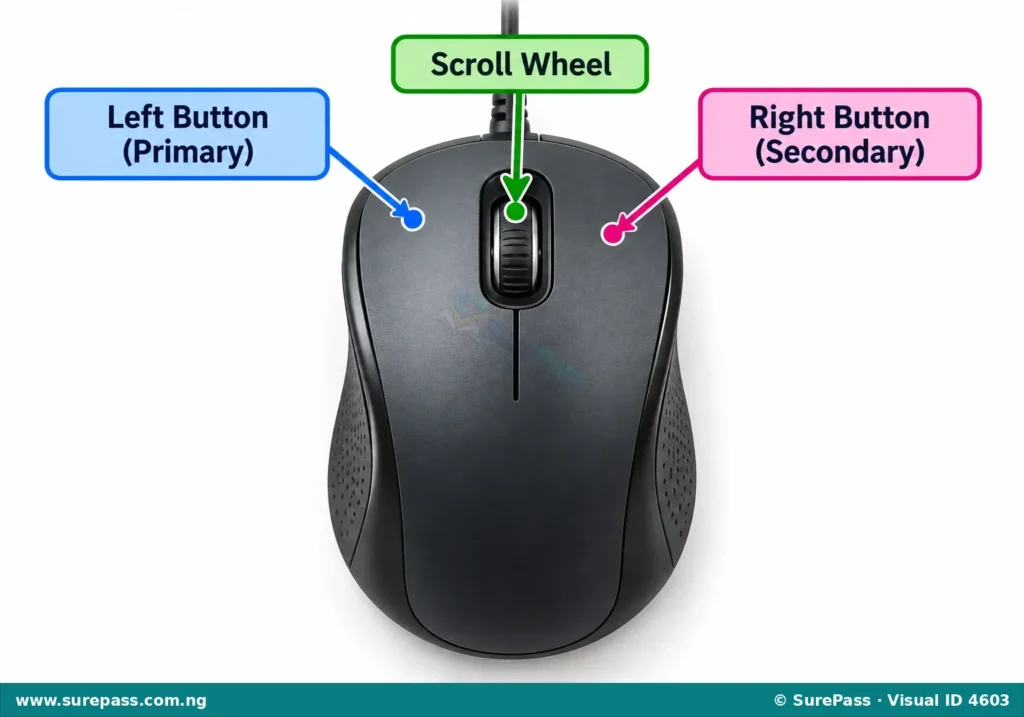
Most computer mice have at least two main buttons and often a scroll wheel in the middle.
- Left Button (Primary Button): This is the most frequently used button. It is typically used for selecting items, clicking on links, and opening programs.
- Right Button (Secondary Button): This button is used to open special menus called “context menus.” These menus offer different options depending on where the pointer is on the screen.
- Scroll Wheel: Many mice have a scroll wheel between the left and right buttons. This wheel is used to move up and down through documents or web pages quickly without using the scroll bars.
Operations of the Mouse
The mouse performs several basic operations that help people interact with the computer’s graphical interface.
- Clicking (Left-Click): Pressing and releasing the left mouse button once. This is used to select an item, activate a button, or follow a link.
- Double-Clicking: Pressing and releasing the left mouse button twice quickly. This is often used to open a program, a file, or a folder.
- Right-Clicking: Pressing and releasing the right mouse button once. This opens a context menu with options related to the item under the pointer.
- Dragging and Dropping: Clicking and holding down the left mouse button on an item, moving the mouse to a new location, and then releasing the button. This is used to move files, folders, or objects on the screen.
- Scrolling: Rolling the scroll wheel up or down to move through a document or web page.
How to Use the Mouse for Input Operations
Using the mouse correctly allows people to navigate the computer screen, select items, and perform actions efficiently. This skill is fundamental for interacting with modern computer systems.
The procedure involves the following steps:
- Hold the mouse gently with the palm resting on its body and the index finger on the left button, and the middle finger on the right button.
- Move the mouse on a flat surface (like a mouse pad) to move the pointer on the screen.
- To select an item, move the pointer over it and press the left mouse button once (click).
- To open a program or folder, move the pointer over its icon and press the left mouse button twice quickly (double-click).
- To see more options for an item, move the pointer over it and press the right mouse button once (right-click).
- To move an item, click and hold the left mouse button on the item, drag the mouse to the new location, and then release the button.
- To move up or down in a document, roll the scroll wheel forward or backward.




0 comments
Open the discussion when you need it. Comments stay collapsed until requested so the initial article remains light.