


ARTICLE CONTENTSOn this page 8 sections
Programming a Game Environment
Performance Objectives
By the end of the lesson, students should be able to:
- explain the meaning of games;
- list common mobile games;
- describe a game environment;
- explain the features of the scratch programming interface;
- create a game environment using scratch.
What Are Games?
A game is an activity played for fun, entertainment, or competition, often following specific rules.
Games can be played alone or with friends. They help people relax, learn new things, and sometimes even exercise their minds.
Common Mobile Games
Mobile games are games played on mobile phones or tablets. Many people enjoy playing these games because they are easy to access and can be played anywhere.
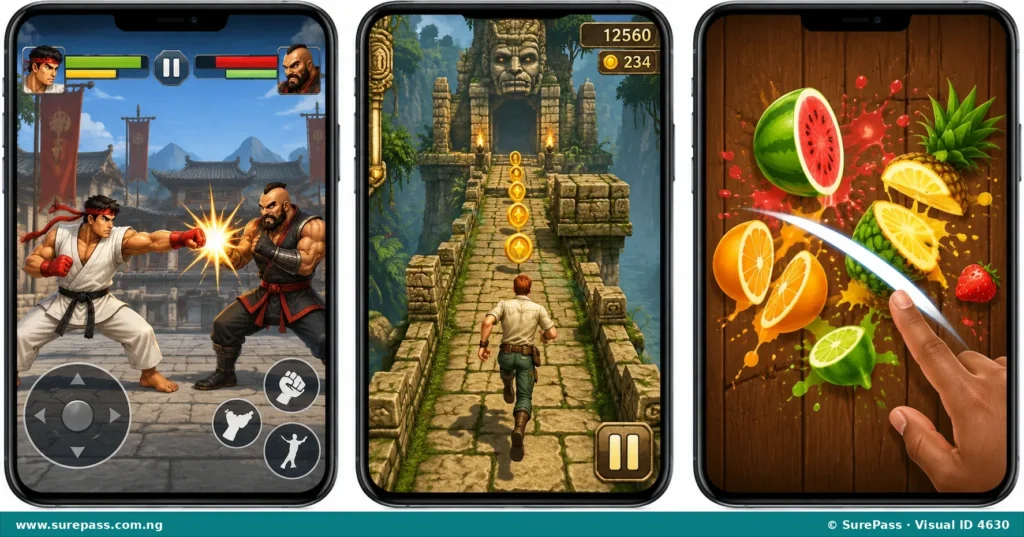
Some common mobile games include:
- Combat: These games often involve fighting or battling against opponents. Players might control characters that use special moves or weapons to win.
- Temple Run: This is an endless running game where a character runs continuously, trying to escape from enemies while collecting coins and avoiding obstacles.
- Fruit Ninja: In this game, players use their fingers to slice fruits that appear on the screen, trying to avoid bombs and score points.
What is a Game Environment?
A game environment is the setting or world where a game takes place. It includes everything a player sees and interacts with during the game.
Think of it as the stage where all the action happens. It can be a jungle, a city, outer space, or even a simple room.
Parts of a Game Environment
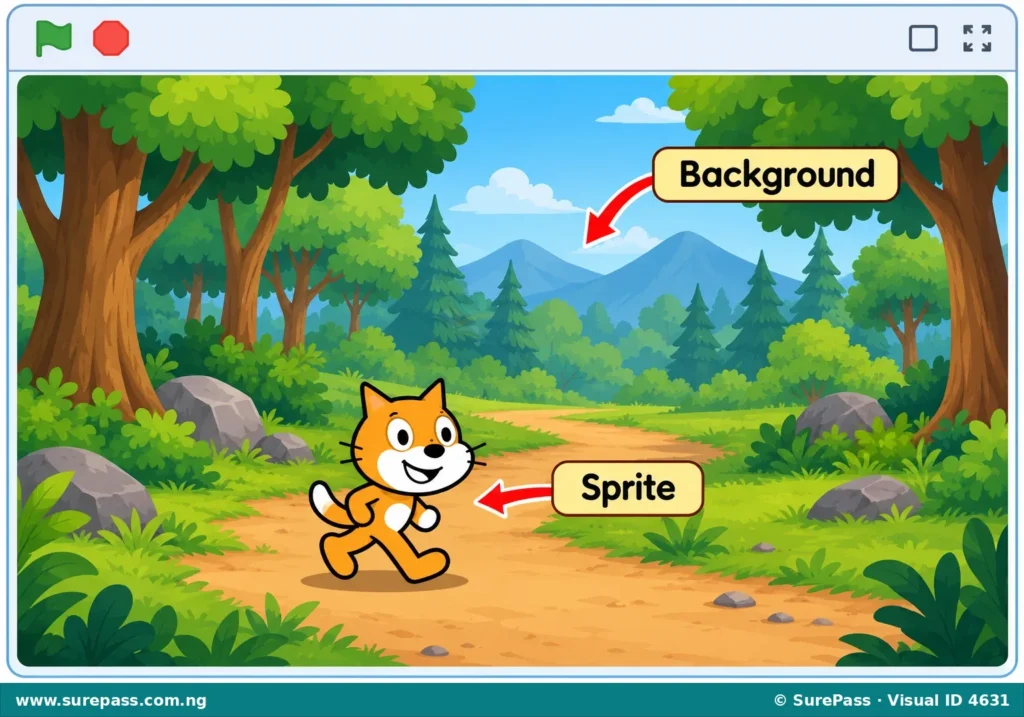
Every game environment has important parts that make it look and feel real. The two main parts are the background and the sprites.
Background
The background is the picture or scene that fills the back of the game screen. It sets the mood and location of the game.
For example, in a racing game, the background might be a city street or a desert road. In a game about space, the background would show stars and planets.
Sprite (Characters)
A sprite is a character or object that moves and interacts within the game environment. Sprites are the actors in your game.
Examples of sprites include the main character you control, enemies, items to collect, or even moving platforms. In the game “Temple Run,” the running character is a sprite, and the monkeys chasing are also sprites.
Scratch Programming Interface
Scratch is a visual programming language that helps children create their own interactive stories, games, and animations. It uses colourful blocks that fit together like puzzle pieces to write code.
The Scratch programming interface is the screen where you create your projects. It has different areas, each with a special job.
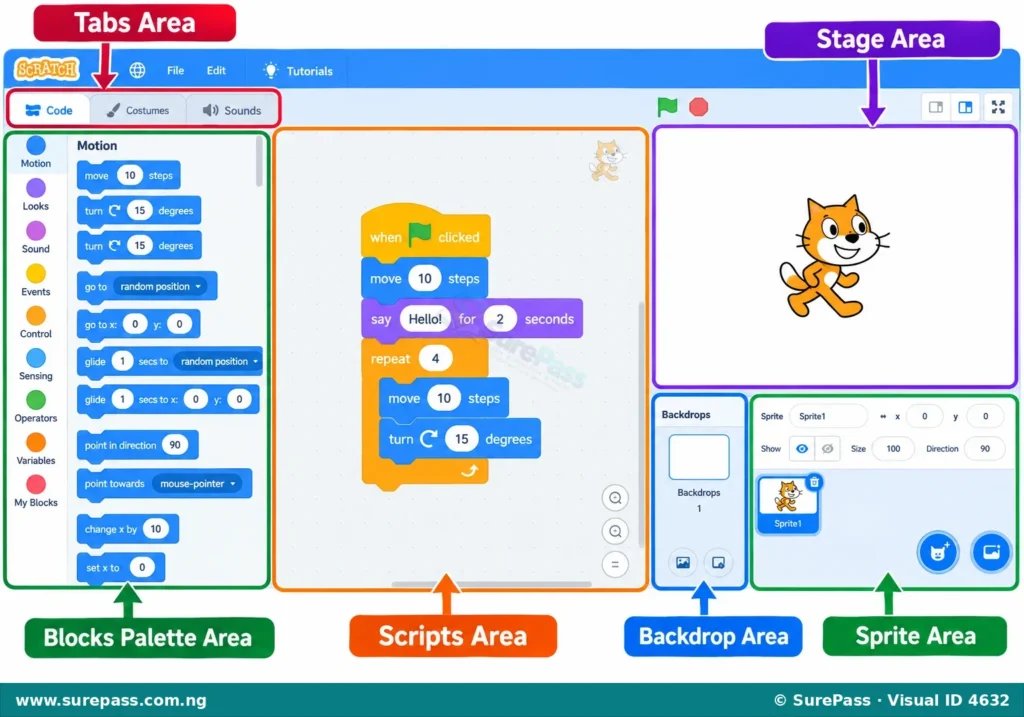
The main features of the Scratch programming interface are:
- Stage Area: This is where your game or animation plays out. It shows the background (backdrop) and all the sprites in action. It’s like the screen of your game.
- Backdrop Area: Located below the Stage Area, this is where you can choose or create different backgrounds for your project. You can change the scene of your game here.
- Sprite Area: Also below the Stage Area, this section shows all the sprites you have added to your project. You can select a sprite here to change its code, appearance, or name.
- Tabs Area: Found at the top left, this area has three tabs: “Code,” “Costumes,” and “Sounds.”
- The “Code” tab shows the Blocks Palette.
- The “Costumes” tab allows you to change how a sprite looks.
- The “Sounds” tab lets you add sounds to your sprites or project.
- Blocks Palette Area: This is a collection of colourful code blocks grouped by their function (e.g., Motion, Looks, Sound, Events). You drag these blocks into the Scripts Area to build your program.
- Scripts Area: This is the large empty space on the right side of the screen. It’s where you drag and connect the code blocks from the Blocks Palette to tell your sprites and backdrop what to do. This is where you write your program.
Steps for Creating a Game Environment Using Scratch
Creating a game environment in Scratch involves setting up your project with a background and a sprite. This is how you start building your game world.
The procedure involves the following steps:
- Open Scratch: Launch the Scratch application on your computer or tablet.
- Create a New Project: When Scratch opens, it usually starts with a new, empty project. If not, click on “File” in the top menu and then select “New.”
- Name Your Project: At the top of the Scratch interface, there is a box where you can type the name of your project. For example, you can type “My First Game Environment.”
- Choose a Backdrop (Background):
- Look for the “Backdrop” section, usually at the bottom right of the screen, below the Stage.
- Click on the “Choose a Backdrop” icon (it looks like a picture with a plus sign).
- A library of backdrops will appear. You can choose one that fits your game idea, like “Blue Sky” or “Forest.” Click on the backdrop you like, and it will appear on the Stage.
- Add a Sprite (Character):
- Look for the “Sprite” section, next to the Backdrop section.
- Click on the “Choose a Sprite” icon (it looks like a cat head with a plus sign).
- A library of sprites will appear. Choose a character you like, such as “Cat,” “Dog,” or “Wizard.” Click on the sprite, and it will appear on the Stage.
- Position Your Sprite: You can click and drag your sprite on the Stage to place it where you want it to start in your game environment.
- Save Your Project:
- Click on “File” in the top menu.
- Select “Save to your computer” or “Save now” if you are online.
- Give your project a name and choose where to save it on your device.
Creating and Colouring a New Image Using the Paint Option (for a custom sprite or backdrop)
Sometimes, you might want to create your own unique sprite or backdrop instead of using the ones from the library. Scratch has a “Paint” editor for this.
The procedure involves the following steps:
- Choose to Paint a New Sprite or Backdrop:
- To paint a new sprite: Go to the “Sprite” section, click the “Choose a Sprite” icon, and then select the “Paint” option (it looks like a paintbrush).
- To paint a new backdrop: Go to the “Backdrop” section, click the “Choose a Backdrop” icon, and then select the “Paint” option.
- Use the Paint Editor:
- The Scratch paint editor will open. It has tools like brushes, fill buckets, shapes (circles, rectangles), and text.
- Select a tool, for example, the “Brush” tool.
- Choose Colours:
- On the left side of the paint editor, you will see colour options. Click on the “Fill” or “Outline” colour selectors to choose the colour you want.
- You can adjust the hue, saturation, and brightness to get the exact shade.
- Draw and Colour Your Image:
- Use the selected tools and colours to draw your desired image. For example, you can draw a simple tree or a house for a backdrop, or a simple character for a sprite.
- Use the “Fill” bucket tool to quickly colour large areas of your drawing.
- Save the Sprite/Backdrop: Once you are happy with your drawing, it will automatically be added to your project as a new sprite or backdrop. You can then rename it in the Sprite or Backdrop area.



0 comments
Open the discussion when you need it. Comments stay collapsed until requested so the initial article remains light.