


ARTICLE CONTENTSOn this page 5 sections
Interface Customisation
Performance Objectives
By the end of the lesson, students should be able to:
- explain the meaning of interface customisation;
- list the examples of interface customisation;
- change the themes and wallpaper of a digital device.
What is Interface Customisation?
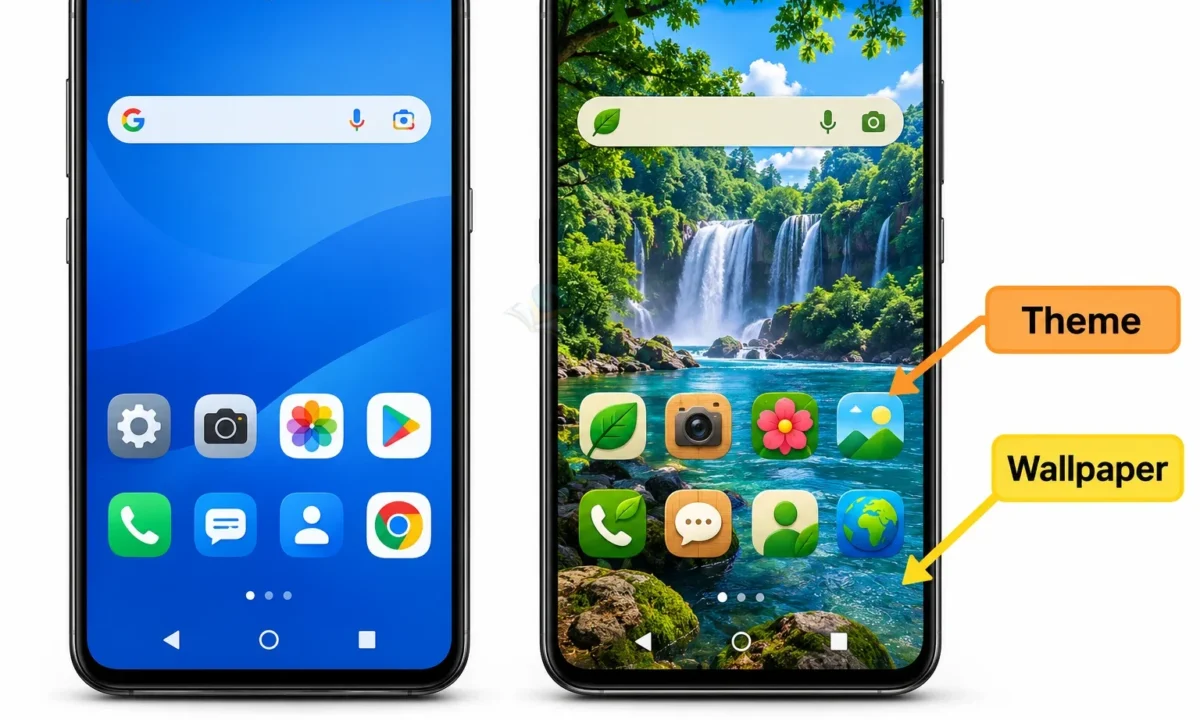
Interface customisation means changing the way a digital device looks and feels. It is like decorating your room to make it look exactly how you like it. When you customise your device, you change its appearance to suit your taste or make it easier to use.
Digital devices like mobile phones, tablets, and computers have a screen that shows different icons, colours, and pictures. This screen is called the user interface. Customising this interface allows a person to make their device unique and personal.
Examples of Interface Customisation
There are many ways to customise the interface of a digital device. Two common examples are changing themes and changing wallpapers.
Changing Themes
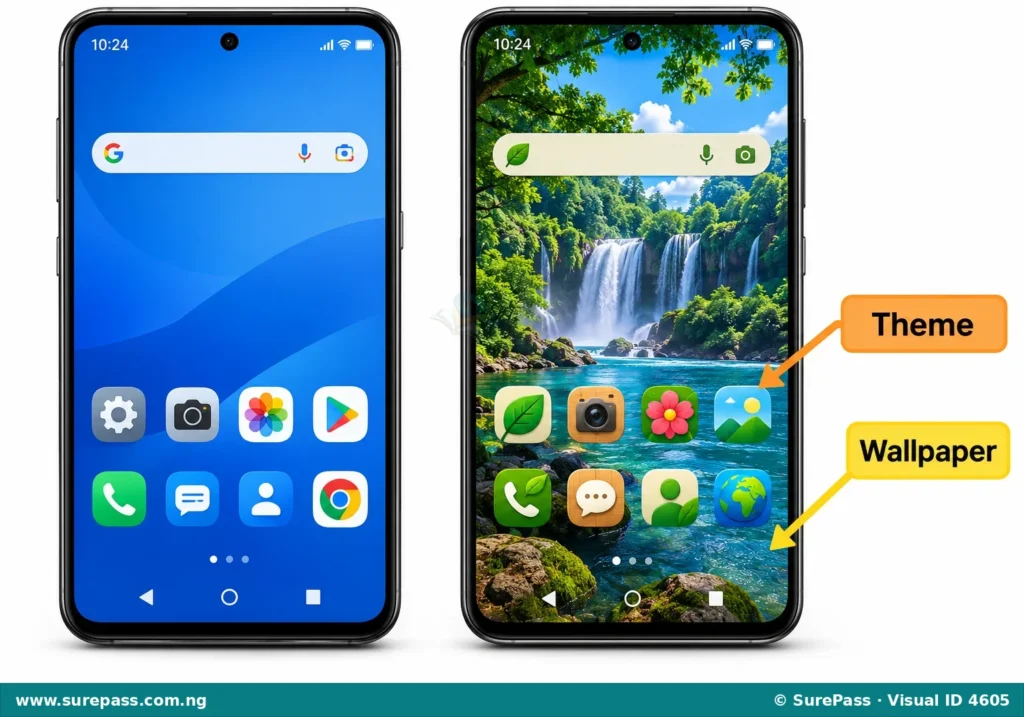
A theme is a complete set of visual changes that affects the entire look of your device’s screen. It includes the background picture, the colours of menus, the style of icons, and sometimes even the sound effects. When you apply a new theme, many parts of your device’s appearance change at once.
Imagine changing all the curtains, bedsheets, and wall paint in your room to match a new colour scheme. That is similar to what a theme does for your digital device.
Changing Wallpapers
A wallpaper is the background picture or image that appears on the home screen and sometimes the lock screen of your digital device. It is the most common way people customise their devices.
You can choose a wallpaper from pictures already on your device, or you can download new ones. Wallpapers can be photos of family, friends, pets, nature, or any image that you like.
Procedure for Interface Customisation on a Mobile Phone
Changing the theme or wallpaper on a mobile phone is a simple process. The exact steps might be slightly different depending on the type of phone, but the general procedure is similar.
How to Change the Theme or Wallpaper
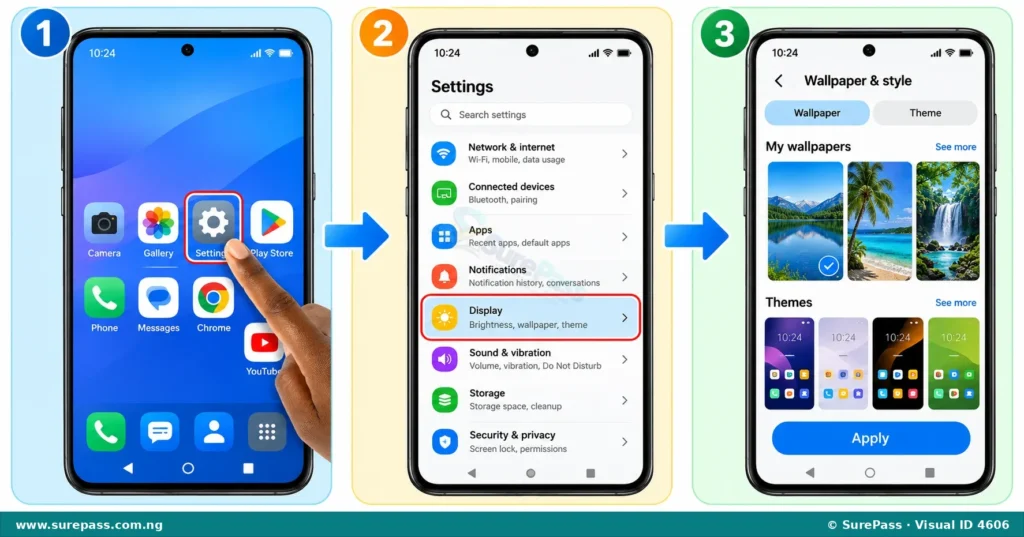
The procedure involves the following steps:
- Open Settings: Find the “Settings” app icon on your phone’s home screen or in the app drawer. It usually looks like a gear or a cogwheel. Tap on it to open the settings menu.
- Select Display: In the Settings menu, look for an option like “Display,” “Wallpaper & Style,” “Personalisation,” or “Themes.” Tap on this option. This section controls how your screen looks.
- Select Theme/Wallpaper: Inside the Display or Personalisation section, you will see options for “Themes” and “Wallpaper.” Tap on the one you want to change.
- Choose from Options:
- If changing a wallpaper, you can choose from pre-installed wallpapers, your own photos (often labelled “Gallery” or “My Photos”), or download new ones from an online store.
- If changing a theme, you will usually find a list of pre-installed themes or an option to visit a “Theme Store” to download new ones.
- Tap “Apply”: After selecting your desired theme or wallpaper, you will usually see a preview. If you are happy with your choice, tap the “Apply,” “Set,” or “Done” button. Your phone’s interface will then change to the new look.




0 comments
Open the discussion when you need it. Comments stay collapsed until requested so the initial article remains light.