


ARTICLE CONTENTSOn this page 6 sections
File Management
Performance Objectives
By the end of the lesson, students should be able to:
- explain the meaning of file and folder;
- list types of files;
- list categories of storage device.
- perform basic file and folder operations.
What Are Files and Folders?
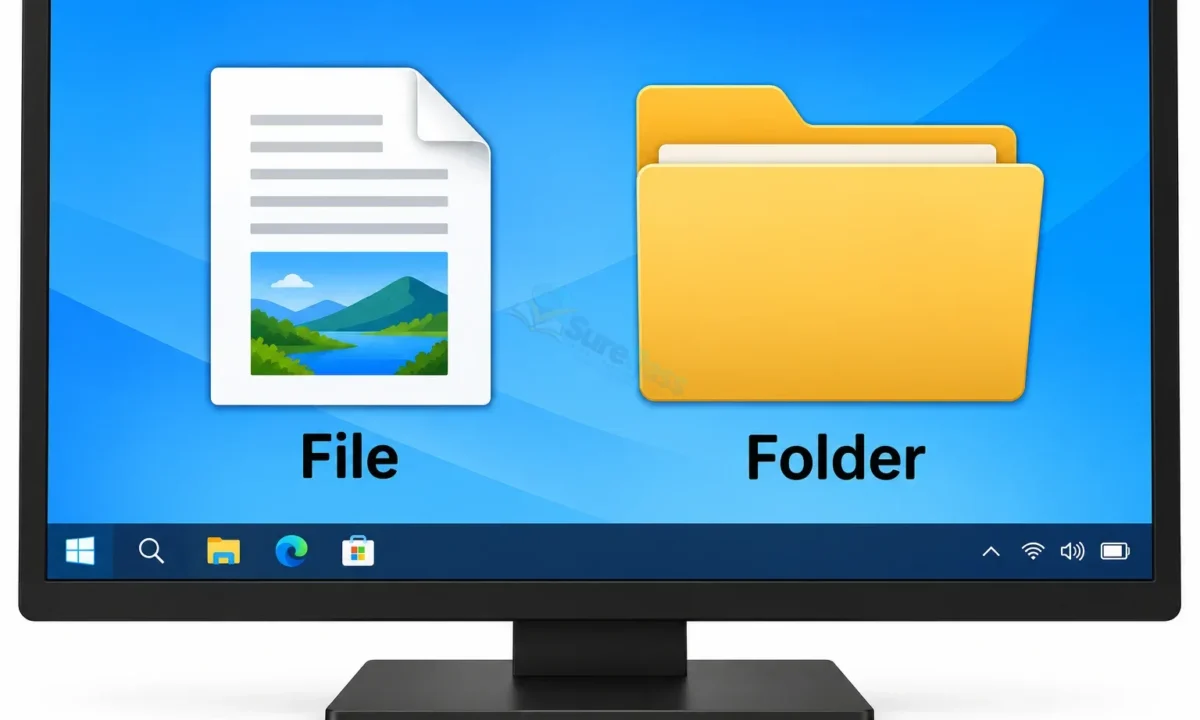
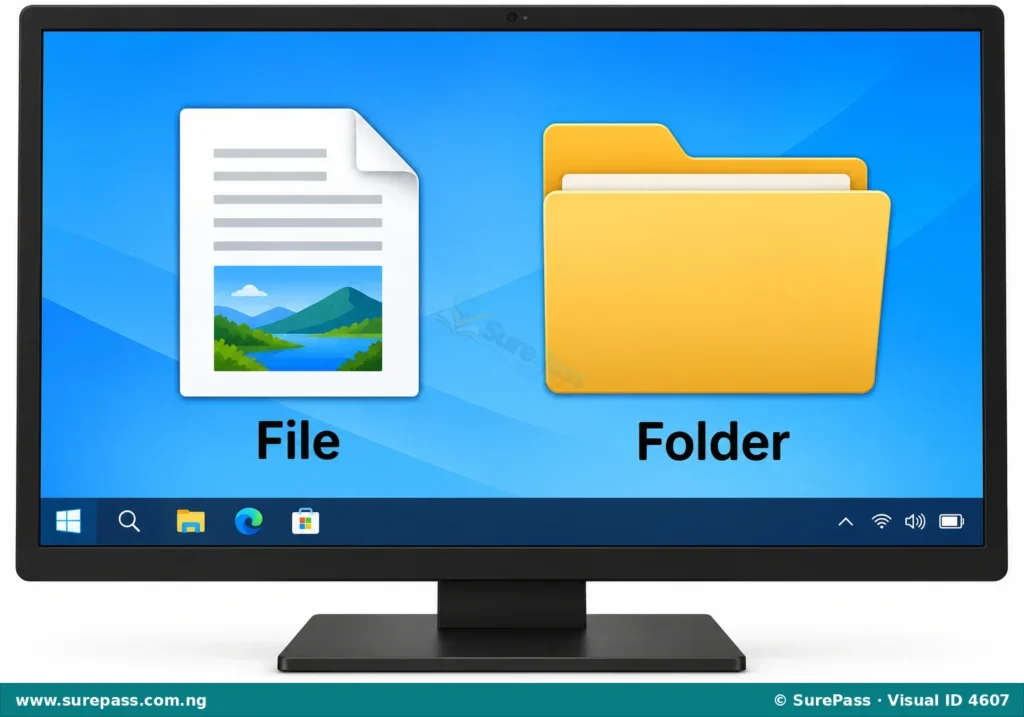
A computer stores all its information in units called files.
A file is like a piece of paper or a notebook where you write or draw something. It holds specific information, such as a story, a picture, a song, or a video. Every file has a name that helps to identify what it contains.
A folder is like a real-life folder or a cabinet where you keep many related papers or files together. On a computer, a folder helps to organise files and other folders. It makes it easy to find your work.
Types of Files
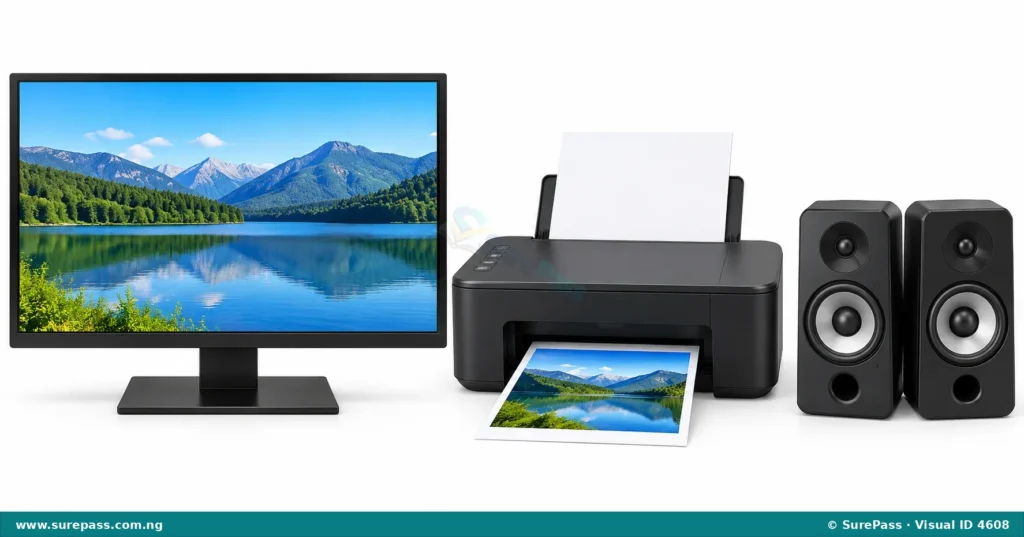
Files come in different types, depending on the kind of information they hold. Each type of file usually has a special icon and a file extension (like .txt, .mp3, .mp4) that tells the computer what kind of data it is.
Text Files
Text files contain written words, numbers, and symbols. They are used for writing stories, letters, notes, or reports. Examples include documents created with programs like Notepad or Microsoft Word.
Audio Files
Audio files contain sounds, such as music, spoken words, or sound effects. These files can be played through speakers or headphones. Examples include songs or voice recordings.
Video Files
Video files contain moving pictures and sounds. They are used for watching movies, cartoons, or recorded events. Examples include videos recorded with a phone or camera.
Categories of Storage Devices
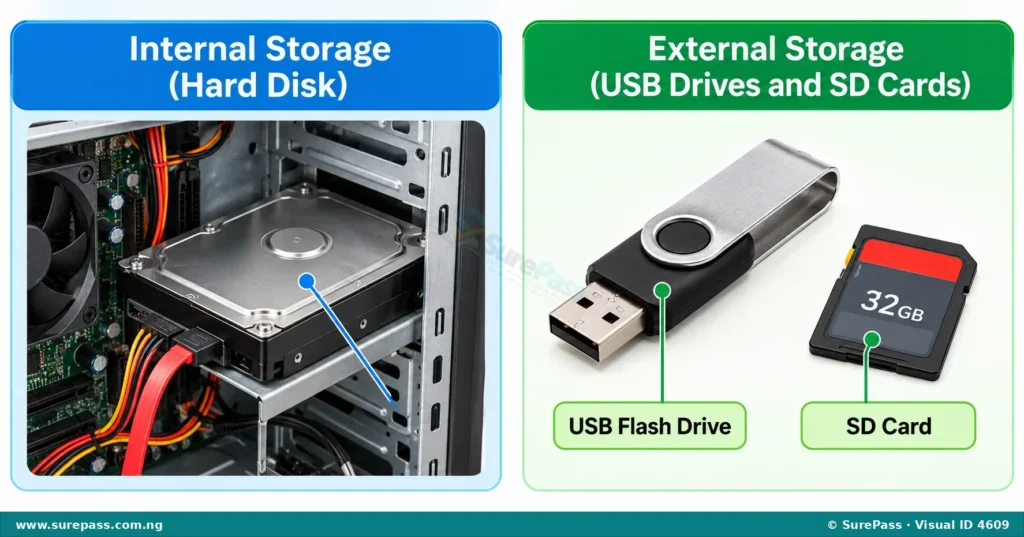
Storage devices are places where computers keep files and folders permanently. They remember your information even when the computer is turned off. There are two main categories of storage devices:
- Internal Storage
- External Storage
- USB Drives (Flash Drives or Pen Drives): These are small, portable devices that plug into a computer’s USB port. They are very common for carrying files.
- SD Cards (Memory Cards): These are tiny cards often used in digital cameras, mobile phones, and tablets to store pictures, videos, and other data. They fit into special slots on devices.
- Go to the location where you want to create the new folder (e.g., your Desktop or Documents folder).
- Right-click on an empty space.
- From the menu that appears, point to “New”.
- Click on “Folder”.
- A new folder icon will appear with a temporary name like “New folder”.
- Type a new name for your folder and press the Enter key.
- Open an application, such as Notepad for text, Paint for drawing, or a music recording app.
- Start creating your content (e.g., type some text, draw a picture).
- Once you have some content, you can save it as a file.
- Open the application you want to use (e.g., Microsoft Word, Paint).
- Create your file by typing, drawing, or adding content.
- Click on the “File” menu at the top of the application window.
- Click on “Save” or “Save As”.
- A “Save As” window will appear. Choose a save location (e.g., “Documents”, “Desktop”, or your USB drive).
- In the “File name” box, type a clear name for your file.
- Choose the file format (this is usually set automatically by the application, like .docx for Word documents or .png for Paint images).
- Click the “Save” button.
- Find the file or folder you want to copy.
- Right-click on the file or folder.
- From the menu, click on “Copy”.
- Go to the new location where you want to place the duplicate (e.g., another folder, a USB drive).
- Right-click on an empty space in the new location.
- From the menu, click on “Paste”.
- A copy of the file or folder will appear in the new location.
- Find the file or folder you want to move.
- Right-click on the file or folder.
- From the menu, click on “Cut”.
- Go to the new location where you want to place the item.
- Right-click on an empty space in the new location.
- From the menu, click on “Paste”.
- The file or folder will disappear from its original location and appear in the new location.
- Find the file or folder you want to rename.
- Right-click on the file or folder.
- From the menu, click on “Rename”.
- The current name will be highlighted.
- Type the new name for the file or folder.
- Press the Enter key.
- Find the file or folder you want to delete.
- Right-click on the file or folder.
- From the menu, click on “Delete”.
- A message might ask you to confirm if you want to move the item to the Recycle Bin. Click “Yes” or “OK”.
- The file or folder will be moved to the Recycle Bin.
Internal Storage (Hard Disk)
Internal storage is built inside the computer. The most common internal storage device is the hard disk drive (HDD) or Solid State Drive (SSD). This is where the computer’s operating system, programs, and most of your files are usually stored.
The hard disk is like the computer’s main brain for remembering things. It is very fast and can store a lot of information.
External Storage (USB Drives and SD Cards)
External storage devices are separate from the computer and can be connected or disconnected easily. They are useful for carrying files from one computer to another or for backing up important information.
Examples of external storage devices include:
Basic File and Folder Operations
Learning to manage files and folders helps you keep your computer organised and find your work easily. Here are some basic operations:
Creating a New Folder
Creating a new folder helps you to group related files together. For example, you can create a folder for “School Work” and another for “My Pictures”.
The procedure involves the following steps:
Creating a New File
You create a new file whenever you start a new document, drawing, or recording in an application. For example, when you open Microsoft Word and start typing, you are creating a new text file.
The procedure involves the following steps:
Saving a File
Saving a file means keeping your work permanently on a storage device so you can open it again later. If you do not save your work, it will be lost when you close the application or turn off the computer.
The procedure for storing information (saving a file) involves the following steps:
To save a file on a hard disk, you simply choose a location like “Documents” or “Desktop” which are part of the internal hard disk.
To save a file on a USB drive or SD card, first make sure the device is properly connected to the computer. Then, when the “Save As” window appears, choose your USB drive or SD card from the list of locations.
Copying and Pasting Files or Folders
Copying makes an exact duplicate of a file or folder in a new location, while the original remains in its first place. Pasting puts the copied item into the new location.
The procedure involves the following steps:
Moving Files or Folders
Moving a file or folder means taking it from its original location and placing it in a new location. The original item will no longer be in its first place.
The procedure involves the following steps:
Renaming Files or Folders
Renaming means changing the name of a file or folder. This is useful if you made a mistake in the name or want to give it a more descriptive name.
The procedure involves the following steps:
Deleting Files or Folders
Deleting a file or folder means removing it from its current location. When you delete something, it usually goes to the “Recycle Bin” (on Windows computers) or “Trash” (on Mac computers), where you can recover it if you made a mistake. If you empty the Recycle Bin or Trash, the file is permanently removed.
The procedure involves the following steps:



0 comments
Open the discussion when you need it. Comments stay collapsed until requested so the initial article remains light.