



ARTICLE CONTENTSOn this page 6 sections
Game Development with PictoBlox
Performance Objectives
By the end of the lesson, students should be able to:
- explain game development;
- identify the functions of programming user interface commands in PictoBlox;
- create a game with variables.
What is Game Development?
Game development is the process of creating computer games. This involves designing the game, writing the rules, creating the characters and objects, and making them move and interact.
Computer games are fun activities played on a computer, tablet or phone. These games can be simple, like catching falling objects, or more complex, like solving puzzles or racing cars. Game development is like telling a story or building a toy, but using a computer.
PictoBlox as Game Development Software
PictoBlox is a special computer program that helps people create games and other interactive projects. It uses a visual way of programming, where users drag and drop colourful blocks that represent different commands.
PictoBlox makes game development easier because it does not require typing complex code. Instead, users connect blocks like puzzle pieces to tell the computer what to do. This makes it a good tool for children to learn about programming and game creation.
Key Parts of the PictoBlox Interface
The PictoBlox software has different sections that help in creating games. Understanding these sections helps in developing games effectively.
- Stage: This is the area where the game plays out. It shows the characters (called sprites) and backgrounds. It is like the screen where players see the action.
- Sprites: These are the characters or objects in the game. A game might have a character that moves, or objects that fall. Each sprite can be programmed to do different things.
- Blocks Palette: This section contains different categories of command blocks, such as ‘Motion’ for moving sprites, ‘Looks’ for changing how sprites appear, ‘Events’ for starting actions, and ‘Control’ for repeating actions or making decisions.
- Scripts Area: This is where the command blocks are dragged and connected to create programs for the sprites. It is like writing instructions for each character in the game.
- Variables: These are special blocks used to store information that can change during the game, such as a player’s score or the time remaining.
Functions of Programming User Interface Commands in PictoBlox
Each type of block in PictoBlox has a specific function that helps to control the game. These functions are like instructions given to the computer.
- Motion Blocks: These blocks control how sprites move. Examples include ‘move 10 steps’ to make a sprite walk, or ‘turn 15 degrees’ to make it rotate.
- Looks Blocks: These blocks change the appearance of sprites or the background. Examples include ‘say Hello!’ to make a sprite speak, ‘switch costume’ to change its look, or ‘change color effect’.
- Sound Blocks: These blocks add sounds to the game. Examples include ‘play sound’ or ‘stop all sounds’.
- Events Blocks: These blocks start a sequence of commands. Examples include ‘when green flag clicked’ to start the game, or ‘when space key pressed’ to make a sprite jump.
- Control Blocks: These blocks manage the flow of the program. Examples include ‘wait 1 second’, ‘repeat 10 times’ for actions that happen many times, or ‘if…then’ for making decisions in the game.
- Sensing Blocks: These blocks allow sprites to detect things, like touching another sprite, touching a colour, or sensing if a key is pressed.
- Operators Blocks: These blocks are used for mathematical calculations and comparing values. Examples include adding numbers or checking if one number is greater than another.
- Variables Blocks: These blocks are used to create and manage variables. They allow the game to keep track of changing information.
Variables in Games
A variable is like a container or a box that holds a piece of information. This information can change as the game is played.
In games, variables are very important for keeping track of things like:
- Score: A variable can store the player’s score. When the player collects an item, the score variable increases.
- Lives: A variable can store how many lives the player has left. When the player makes a mistake, the lives variable decreases.
- Time: A variable can store how much time is left in the game. This variable counts down as the game progresses.
- Level: A variable can store the current level of the game. When the player completes a level, this variable changes to the next level.
Using variables makes games more dynamic and interactive, allowing them to respond to player actions and keep track of progress.
Creating a Game with Variables
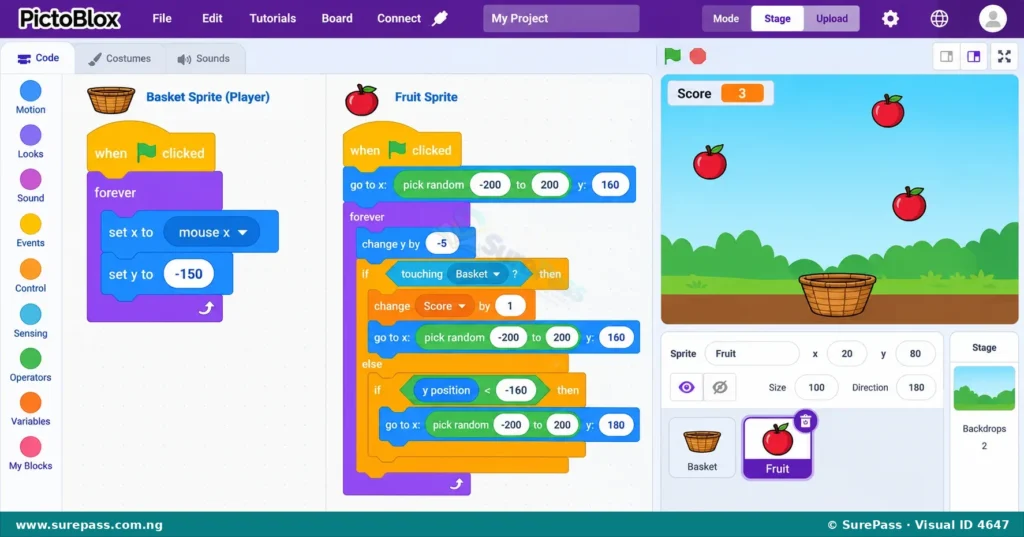
Creating a game in PictoBlox involves planning what the game will do and then using the command blocks to make it happen. A common type of game that uses variables is a fruit-catching game, where a player controls a character to catch falling objects and earn points.
How to Create a Fruit Catching Game with Variables
This procedure explains how to create a simple fruit-catching game where a basket sprite catches falling fruit sprites, and a score variable keeps track of points.
The required materials are:
- A computer or tablet with PictoBlox software installed.
- Internet access (if downloading PictoBlox for the first time or accessing online resources).
The procedure involves the following steps:
- Open PictoBlox: Start the PictoBlox software on the computer or tablet.
- Choose a Background: Click on the ‘Stage’ area and select a suitable background for the game, such as a sky or a garden.
- Add Sprites:
- Delete the default sprite (if any).
- Add a ‘Basket’ sprite from the PictoBlox library. This will be the player’s character.
- Add a ‘Fruit’ sprite (e.g., an apple or banana) from the library. This will be the falling object.
- Program the Basket Sprite (Player Control):
- Select the ‘Basket’ sprite in the Sprites area.
- Drag an ‘Events’ block:
when green flag clickedto the Scripts area. - Drag a ‘Control’ block:
forever. - Inside the
foreverblock, add ‘Motion’ blocks:set x to mouse x. This makes the basket follow the mouse pointer horizontally.
- Create a Score Variable:
- Go to the ‘Variables’ category in the Blocks Palette.
- Click on ‘Make a Variable’.
- Type “Score” as the variable name and click ‘OK’. A ‘Score’ variable block will appear, and the score will be displayed on the Stage.
- Drag an ‘Events’ block:
when green flag clicked. - Drag a ‘Variables’ block:
set Score to 0. Place it under thewhen green flag clickedblock. This ensures the score starts at zero each time the game begins.
- Program the Fruit Sprite (Falling and Scoring):
- Select the ‘Fruit’ sprite.
- Drag an ‘Events’ block:
when green flag clicked. - Drag a ‘Control’ block:
forever. - Inside the
foreverblock, add ‘Motion’ blocks:go to x: (pick random -200 to 200) y: 180. This makes the fruit appear at a random top position.repeat (e.g., 30).- Inside the
repeatblock, addchange y by -10. This makes the fruit fall downwards.
- After the
repeatblock, add an ‘Control’ block:if (Sensing block: touching Basket?) then. - Inside the
if...thenblock:- Drag a ‘Variables’ block:
change Score by 1. - Drag a ‘Looks’ block:
hide. - Drag a ‘Control’ block:
wait 0.1 seconds. - Drag a ‘Looks’ block:
show.
- Drag a ‘Variables’ block:
- Outside the
if...thenblock, but still inside theforeverloop, add anotherif (Sensing block: y position < -170) thenblock. This checks if the fruit missed the basket and went off-screen. - Inside this second
if...thenblock, add ‘Motion’ blocks:go to x: (pick random -200 to 200) y: 180. This makes the fruit reappear at the top if it is missed.
- Test the Game: Click the green flag icon on the Stage to start the game. Move the mouse to control the basket and try to catch the falling fruits. Observe how the ‘Score’ variable changes.




0 comments
Open the discussion when you need it. Comments stay collapsed until requested so the initial article remains light.