


ARTICLE CONTENTSOn this page 6 sections
Peripheral devices
Performance Objectives
By the end of the lesson, students should be able to:
- explain the meaning of peripheral devices:
- describe the functions of peripheral devices.
- use peripheral devices effectively
Meaning of Peripheral Devices
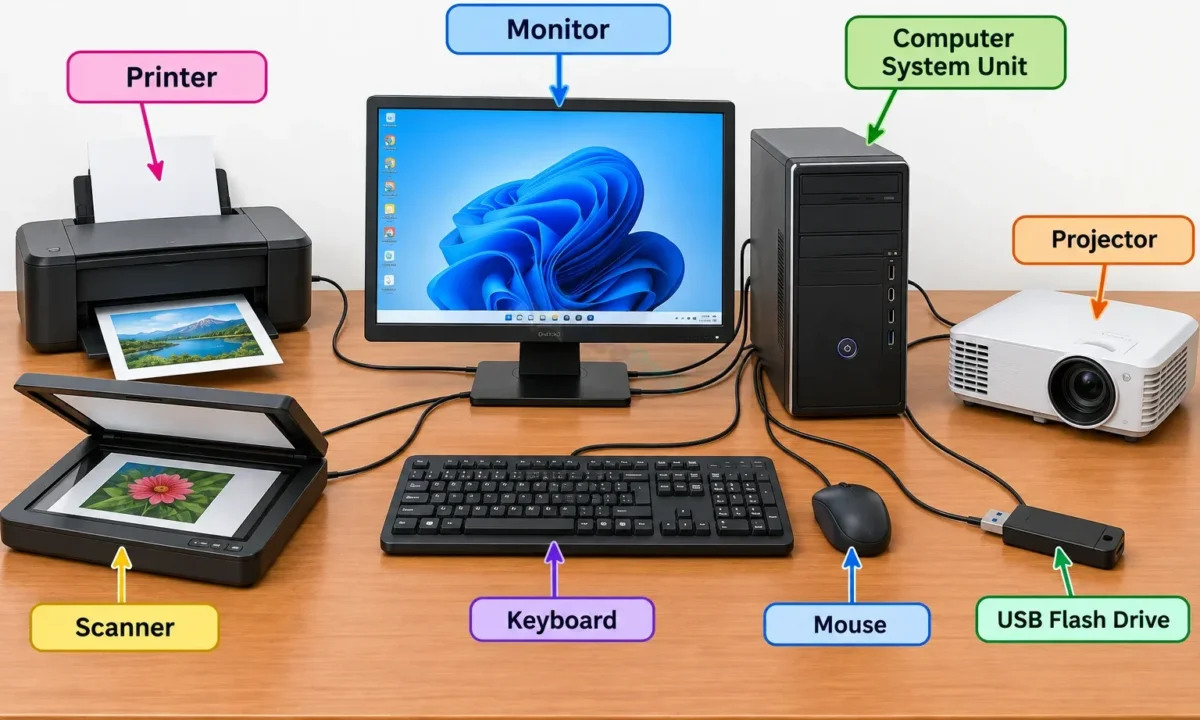
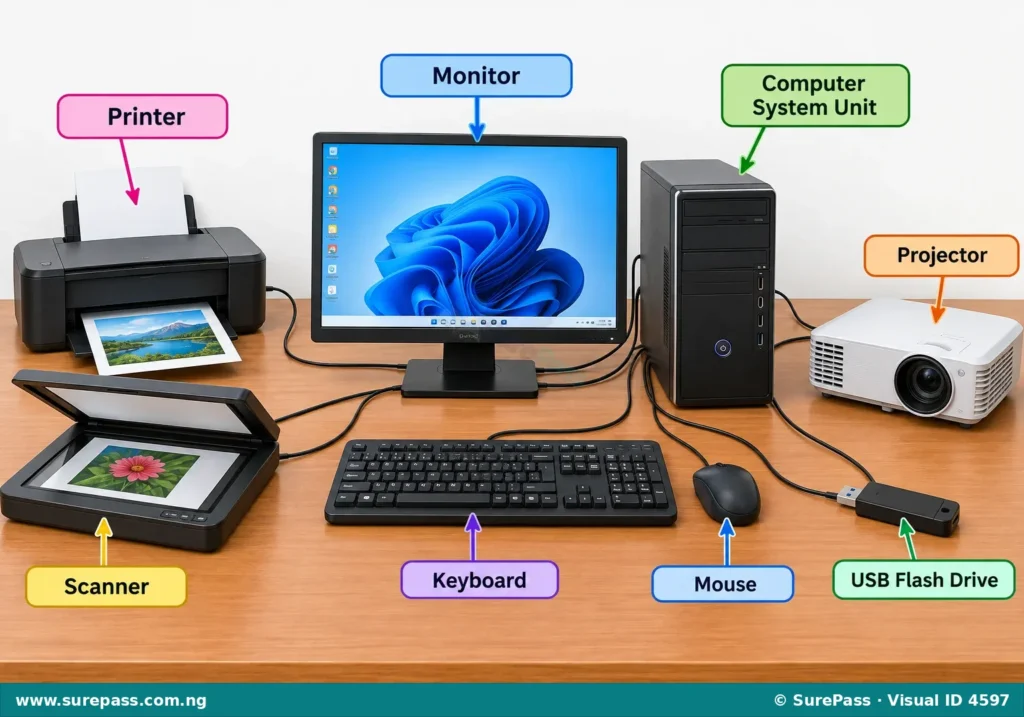
A peripheral device is an external device that connects to a computer to expand its functions.
These devices are not part of the main computer itself, but they help the computer to do more things. They are like extra tools that you can plug into your computer to make it more useful. Without peripheral devices, a computer can still work, but it would be very limited in what it can do.
Types of Peripheral Devices
Peripheral devices can be grouped into different types based on what they do. The three main types are input devices, output devices, and storage devices.
Input Devices
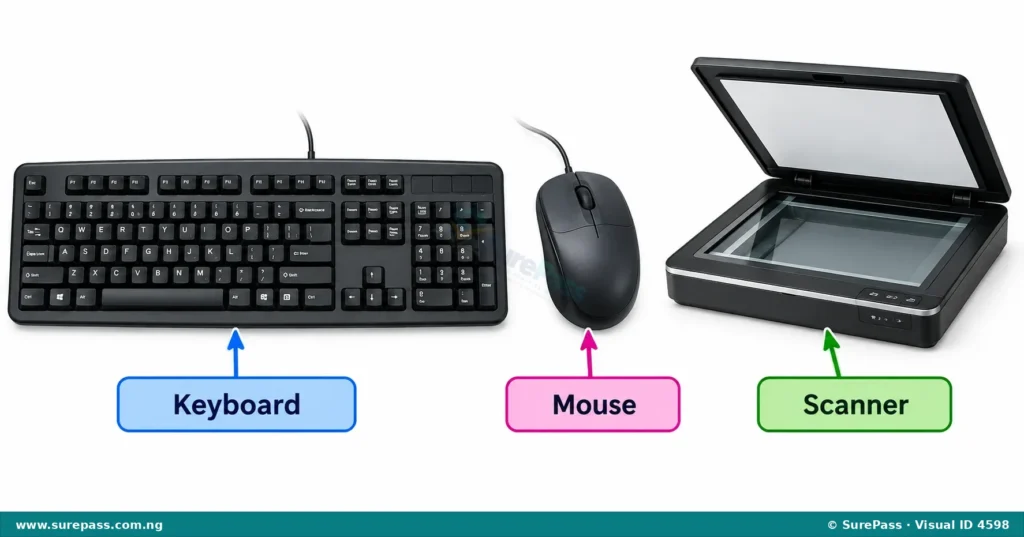
Input devices are peripheral devices that send information or data into the computer.
They allow users to give commands, type text, draw pictures, or send sounds to the computer. The computer then processes this information.
Common input devices include:
- Keyboard: This device has keys with letters, numbers, and symbols. It is used to type text and give commands to the computer.
- Mouse: This small device is moved on a flat surface to control a pointer on the computer screen. It is used to select items, open programs, and navigate.
- Scanner: A scanner is used to convert pictures, documents, or drawings from paper into digital images that can be stored and used by the computer.
Output Devices
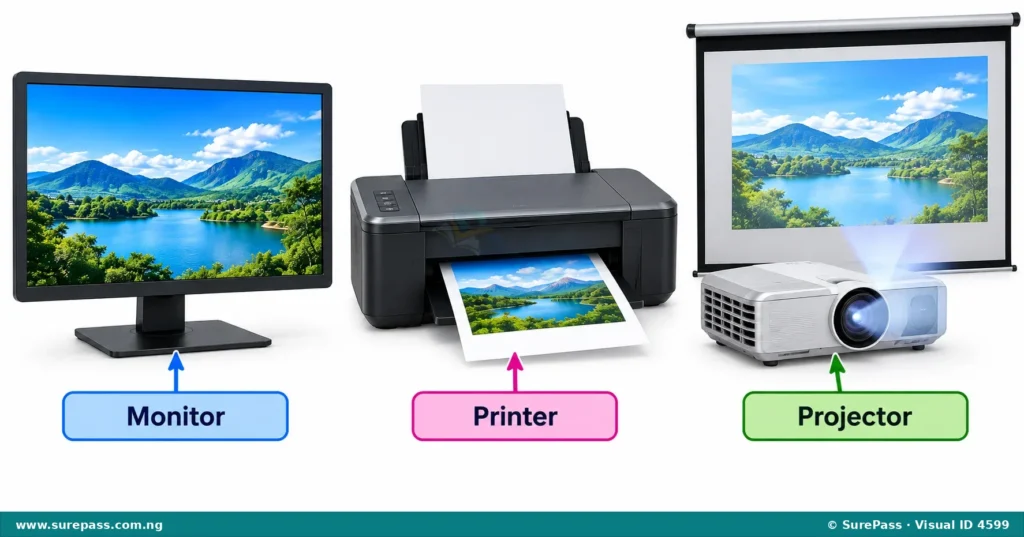
Output devices are peripheral devices that receive information or data from the computer and display or present it to the user.
They allow the computer to show results, play sounds, or print documents. This is how the computer communicates back to the user.
Common output devices include:
- Monitor (Screen): This is the main display screen of a computer. It shows text, images, and videos from the computer.
- Printer: A printer takes digital information from the computer and puts it onto paper. This can be text, pictures, or documents.
- Projector: A projector takes images or videos from a computer and displays them onto a large screen or wall. This is useful for showing presentations to many people.
Storage Devices
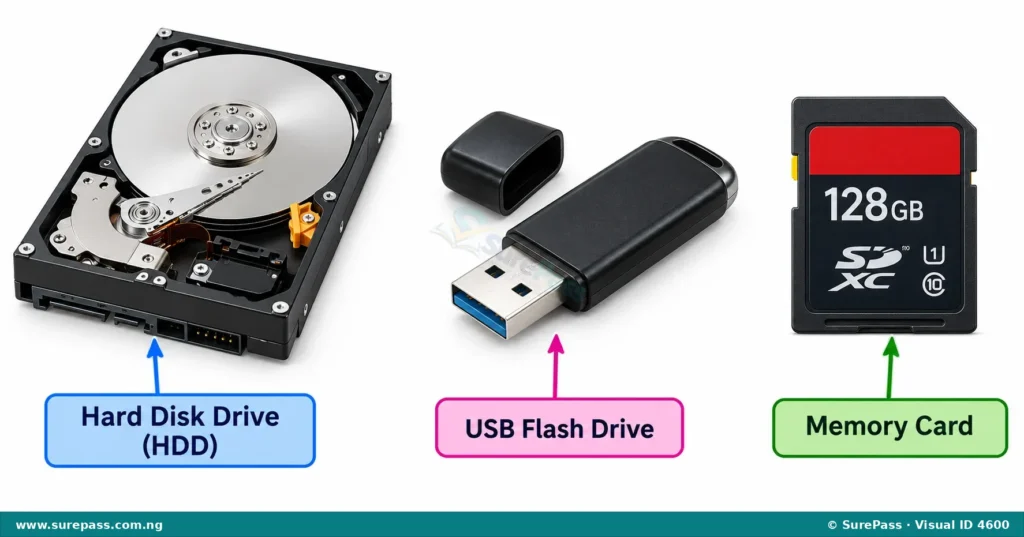
Storage devices are peripheral devices that keep or save information and data permanently or temporarily for later use.
They allow users to save their work, pictures, videos, and programs so they can be accessed again even after the computer is turned off.
Common storage devices include:
- Hard Disk Drive (HDD): This is usually found inside the computer and stores most of the computer’s programs and files.
- USB Flash Drive (Pen Drive): This is a small, portable device that can be plugged into a computer’s USB port to save and transfer files.
- Memory Card: These are small cards used to store data in devices like cameras and mobile phones, and can be read by computers using a card reader.
Functions of Peripheral Devices
Each peripheral device has a specific function that helps the computer perform tasks more effectively. Understanding these functions helps in choosing the right device for a particular job.
- Keyboards and Mice are used for entering text and commands, allowing users to interact with software and operating systems.
- Scanners are used to convert physical documents or images into digital formats, making them editable and shareable on the computer.
- Monitors and Projectors display visual information from the computer, enabling users to see what they are working on or present content to an audience.
- Printers produce hard copies of digital documents, allowing users to have physical records or share information on paper.
- Storage devices like USB drives and hard disks save data, ensuring that files and programs are not lost and can be accessed whenever needed.
Setting Up and Using Peripheral Devices
Setting up and using peripheral devices involves connecting them to the computer and then using them for their intended purpose. Most modern devices are easy to connect and use.
Connecting Peripheral Devices
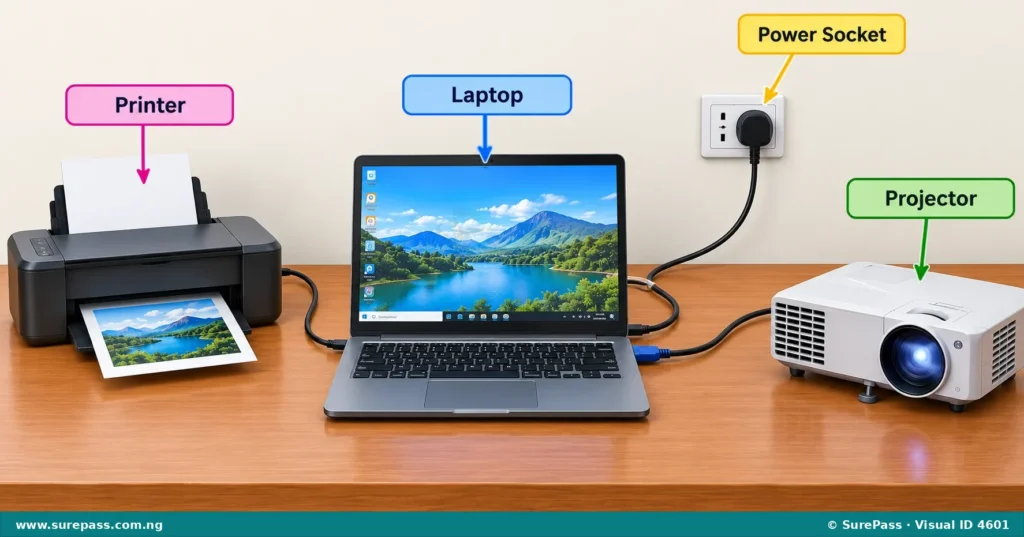
The general steps for connecting most peripheral devices are:
- Check the Cables: Identify the correct cables for the device. Most devices use a power cable and a data cable (like a USB cable).
- Connect to Power: Plug the power cable into the device and then into an electrical socket.
- Connect to Computer: Plug the data cable (e.g., USB cable) from the device into the correct port on the computer.
- Turn On: Switch on the peripheral device. The computer usually detects the new device automatically.
Using a Printer
A printer is used to print documents or pictures from the computer onto paper.
The procedure for printing a document involves the following steps:
- Ensure the printer is connected to the computer and turned on.
- Make sure there is enough paper loaded in the printer’s paper tray.
- Open the document or picture on the computer that needs to be printed.
- Click on the “File” menu in the program and then select “Print”.
- A print window will appear. Check the settings, such as the number of copies.
- Click the “Print” button to start printing.
Using a Scanner
A scanner is used to turn paper documents or photos into digital files on the computer.
The procedure for scanning a document involves the following steps:
- Ensure the scanner is connected to the computer and turned on.
- Lift the scanner lid and place the document or photo face down on the glass surface.
- Close the scanner lid gently.
- On the computer, open the scanning software or use the computer’s built-in scanning function.
- Select the type of scan (e.g., document, photo) and adjust any settings if needed.
- Click the “Scan” button to start the scanning process.
- Once scanned, the image will appear on the computer screen and can be saved.
Using a Projector
A projector is used to display the computer screen onto a larger surface like a wall or screen.
The procedure for using a projector involves the following steps:
- Ensure the projector is connected to the computer using a video cable (e.g., HDMI or VGA).
- Plug the projector’s power cable into an electrical socket and turn on the projector.
- Turn on the computer. The computer screen should appear on the projected surface.
- If the image does not appear, press the “Function” key (Fn) and a display key (often F5 or F8) on the computer keyboard to switch the display to the projector.
- Adjust the focus and zoom on the projector to make the image clear and fit the screen.


0 comments
Open the discussion when you need it. Comments stay collapsed until requested so the initial article remains light.